UpdateMTX: General
New Colours for the Efficiency Chips, an Efficiency Strips View and a New Timeline
The Efficiency Chips on the Time Machine have new colours, chosen so that every part of a chip stays distinct on an office TV and for colour-blind viewers. Technical time is now cyan, non-technical light cyan and unused time slate on the outer ring; working is green, unavailable blue and available the same red the Availability board uses for a member who is Missing, so idle time reads the same in both panes. The same colours are used in the details dialog, so a lunch that was teal is now blue everywhere.
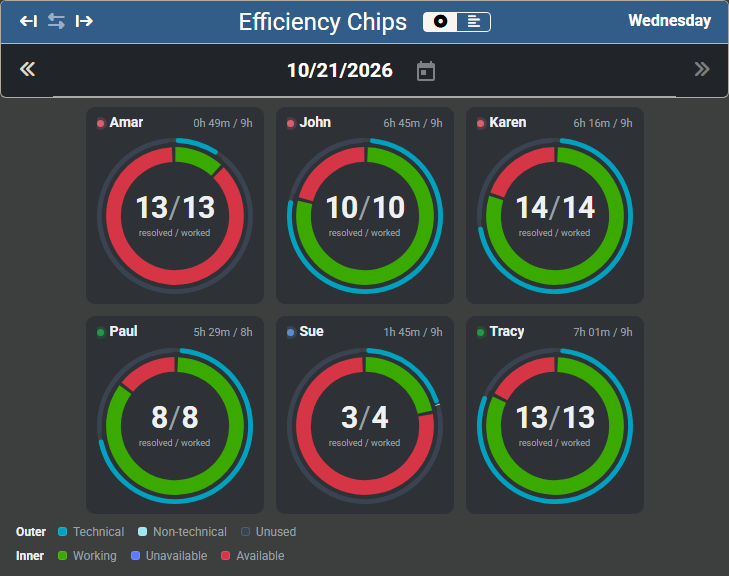
- A cleaner chip. Each chip sits in a card headed by the member's name and their recorded time against the working day, such as 7h 15m / 8h. A green dot before the name shows that the member has a ticket in progress now. The inner ring is thicker, the counts sit at the centre labelled resolved / worked, and a legend under the chips names every colour.
- A new Efficiency Strips view. The two-icon switch in the chips header turns the chips into one row per member on a shared time axis: a thick day lane shows when the member was working, unavailable or available, a thin lane above it shows how much of the working day is recorded as technical and non-technical time, and a line marks the present minute (or the moment selected in the Time Machine) across every row, with the rest of today hatched. The axis covers the working days of the members shown; a stretch that runs past it is cut at the edge and marked. Hover a stretch to see its times, its duration and the ticket worked; click it to open the same details reports a chip opens. The choice is remembered on your device.
- Drag the line to travel in time. The yellow line across the strips is a handle: drag it, or click the hour axis, and the Availability board shows everyone as they were at that moment, exactly as moving the timeline does. The line cannot go past the present minute; dragging it back there returns the board to live. With the line focused, the arrow keys move a minute, fifteen with Shift held, and Home and End go to the ends.
- A new timeline. The Time Machine's slider is redrawn as a fixed midnight-to-midnight axis with the account's working day as a brighter band and the rest of today hatched. The yellow handle shows the selected time, or the running clock while live, and the time under the pointer is shown as you hover. The play controls sit in one group, with the speed shown on the playing button, and a LIVE pill returns to the present minute. The handle also answers the keyboard: a minute with the arrows, fifteen with Shift, an hour with Page Up and Page Down.
- Strips on the Dashboard and in the calendar. The Dashboard Link dialog lets you choose chips or strips for the office TV, and carries the choice in the link. In a member's details, the Chip report's calendar shows each day's strip for a week or a month while the strips view is chosen.
- The restrict setting names both views. The account setting Restrict Chips and Strips on Time Machine (formerly Restrict Chips on Time Machine) works as before.
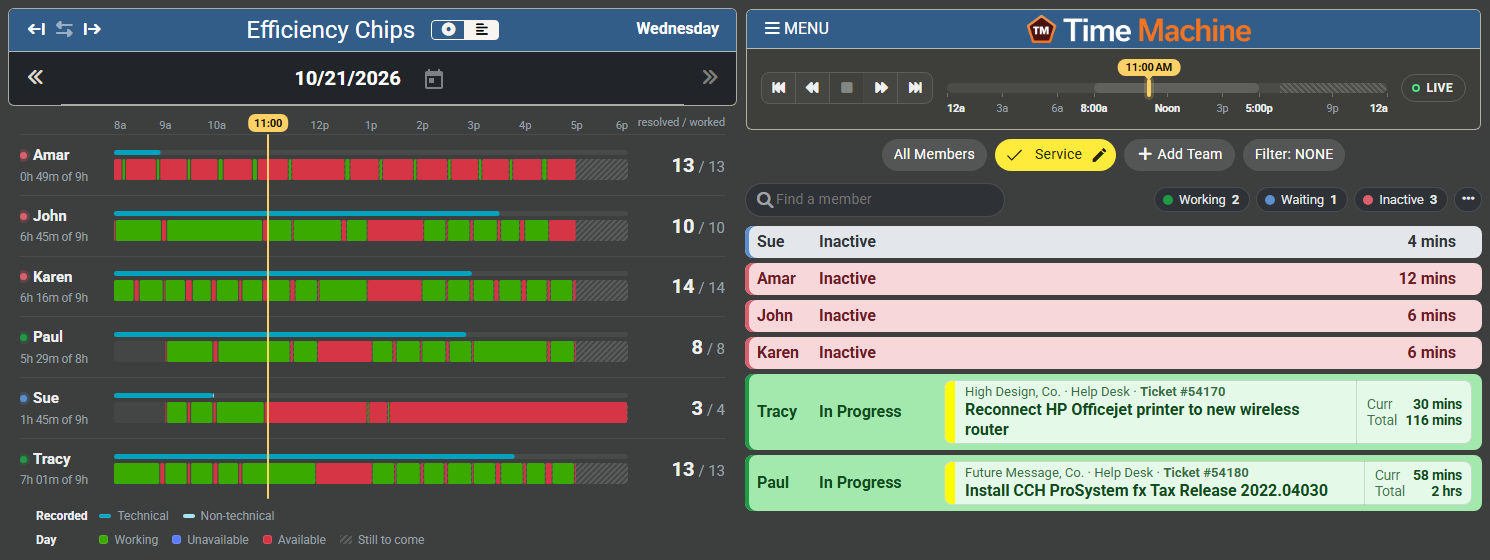
The switch can be found on the Time Machine, in the header of the Efficiency Chips pane.