Nilear changes in 2023

91 changes, newest first.

FeatureMTX: My Schedule

Board Color Coding Markers

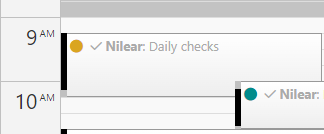
My Schedule and Dispatch Calendar views will now present board color coding markers. These markers were previously only shown on the Tickets tab in MTX. You can define board colors under Nilear -> Settings -> Board Types (https://app.nilear.com/settings/boards)

Board Color Coding Markers

FeatureMTX: Tickets

Autodetect Invalid CC Addresses

MTX will now automatically alert you if an invalid CC email address is encountered for a ticket.

Autodetect Invalid CC Addresses

FeatureConnectActive

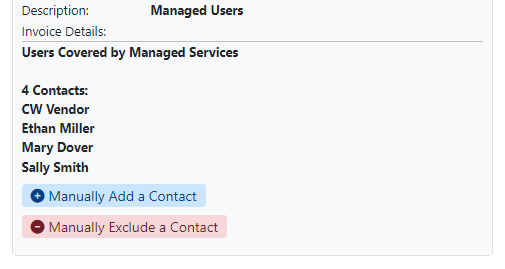
Manually Add/Exclude Contacts from Agreement Additions

You can now manually add or exclude contacts from an agreement addition.

Manually adding a contact may be necessary for contacts which are external to a company's AD/M365 environment.

Manually excluding a contact may be necessary for MSPs using a company's M365 license for internal use.

Manually Add/Exclude Contacts from Agreement Additions

FeatureConnectActive

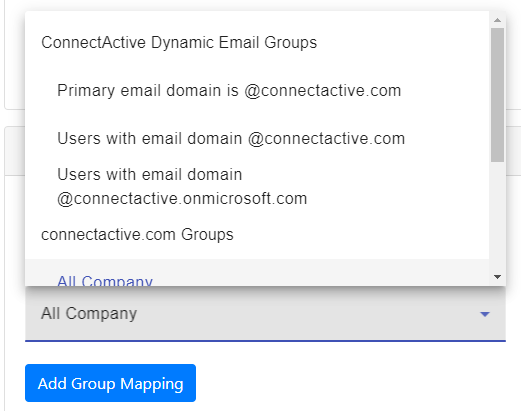
Dynamic Groups based on Email Domain

ConnectActive now provides additional dynamic groups based on email domains, which can be used for agreement addition mapping or filtering.

A "Primary email domain is @domain.com" group will be created for each unique domain found and populated only with those users whose primary email domain matches.

A "Users with email domain @domain.com" group will be created for each unique domain found and populated only with those users whose primary email domain or any email alias domain matches.

Dynamic Groups based on Email Domain

FeatureMTX: Tickets

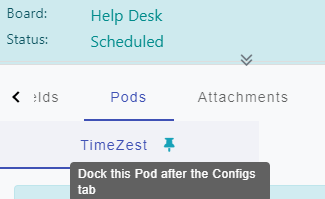
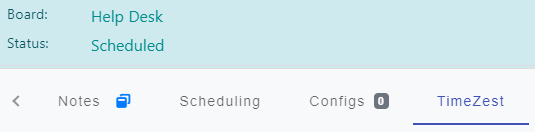
Dock Pods

Under the Pods tab for a ticket, you can now opt to include a specific vendor Pod as its own tab after the Configs tab.

Dock Pods

Dock Pods

FeatureMTX: Tickets

Working Notes Colors

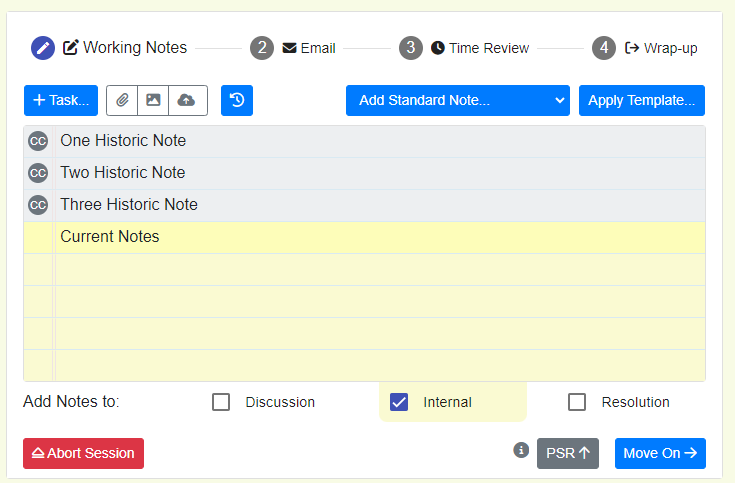
The Working Notes section will use a shaded background for historic notes and a yellow hue background for current notes that will be added to "Internal Analysis" only.

Working Notes Colors

AnnouncementMTX: Tickets

Schedule Send Email

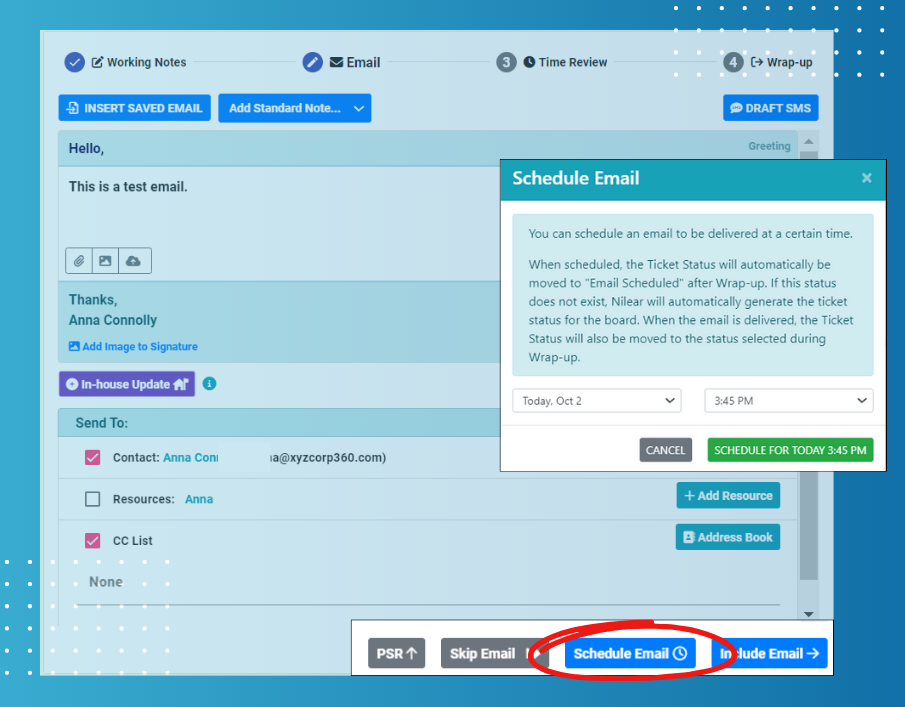
When drafting an email in MTX, you can now schedule when you wish to have your response delivered.

Any scheduled email will be recorded against the ticket as an internal note, allowing you to edit or delete the scheduled email.

If you are using schedule send email as part of MTX's "Working on Ticket", after the wrap-up phase, MTX will automatically set the ticket status to "Email Scheduled". Once the scheduled email is delivered, MTX will automatically set the ticket status to the one originally selected during wrap-up.

Over the next couple of weeks, we will be rolling out more of the new features available in MTX 4.4!
Schedule Send Email

FeatureMTX: Tickets

View Closed Schedules

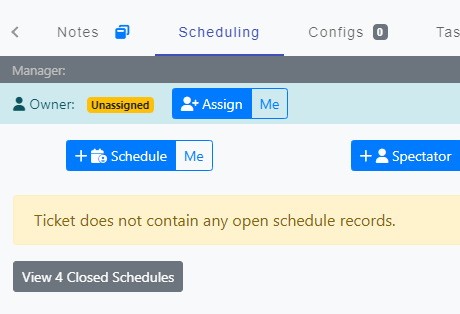
Under a Ticket's Scheduling tab, you now have the option to view Closed Schedules.

View Closed Schedules

FeatureMTX: My Schedule

Calendar/Vertical View for Dispatcher

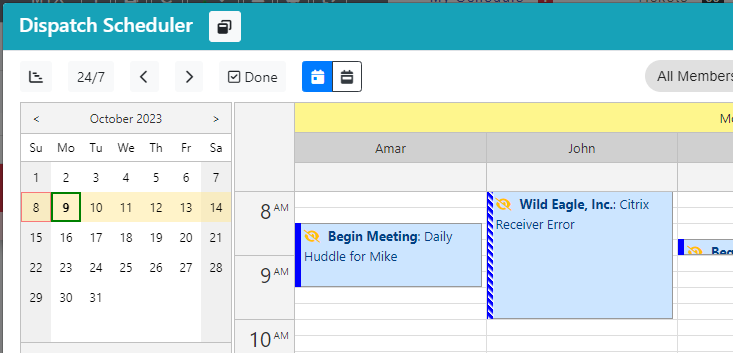
The MTX Dispatcher can now toggle between Scheduler (horizontal) and Calendar (vertical) views.

Calendar/Vertical View for Dispatcher

UpdateMTX: My Schedule

Color Enhancements for Calendars

The contrast between the working hours color and non-working hours color has been increased.

Dark Mode is now properly applied to calendars.

UpdateMTX: My Schedule

Moving Missed Schedules to New Date

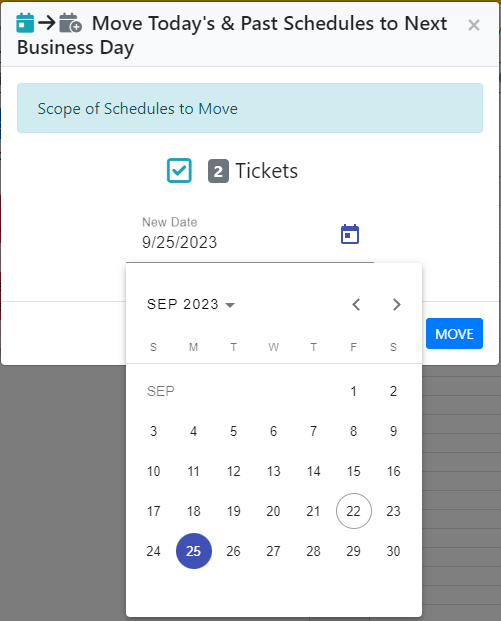
You can now set a custom date when moving past schedules forward to today or next business day.

Moving Missed Schedules to New Date

FeatureMTX: Tickets

Recent Tickets

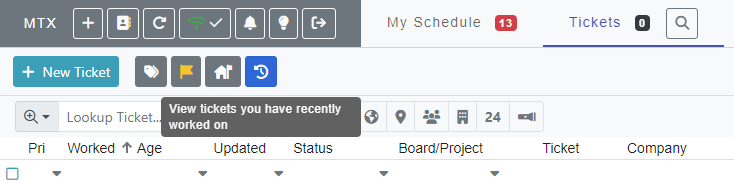
You can now view the most recent tickets you have worked on in MTX.

Recent Tickets

FeatureMTX: My Schedule

Travel Information for On-sites and New Schedules

When creating a new schedule or viewing an on-site schedule, MTX will now attempt to provide travel information.

Travel Information for On-sites and New Schedules

FeatureMTX: Tickets

Company Team Information

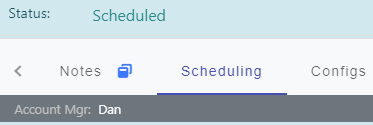
The Scheduling tab under a ticket will now show the company's Account Manager and Primary Tech assignments.

Company Team Information

FeatureConnectActive

Behind Invoicing Handling

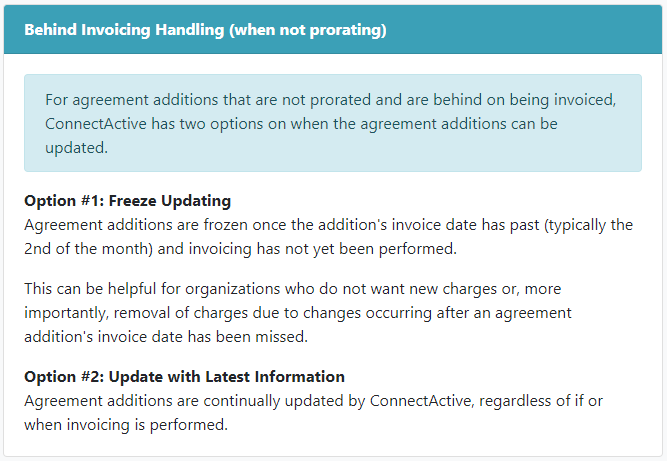
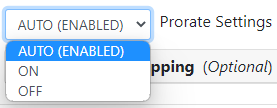
The following option is now available under ConnectActive -> Prorating tab.

Behind Invoicing Handling

FeatureMTX: My Schedule

Create Charge Code Time Entry in Schedule Entries

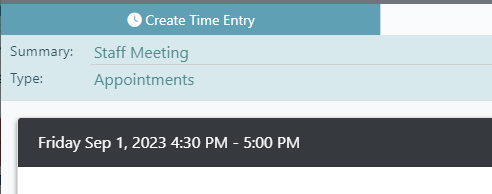
When viewing a Schedule Entry (Non-Ticket, Non-Activity calendar entry), you can now create a charge code time entry based on the schedule entry.

Create Charge Code Time Entry in Schedule Entries

FeatureNilear Live

Set Default Lunch Duration for Nilear Live

By default, submissions for lunch via Nilear Live will default to 30 minutes. You can now specify your own default lunch duration.

Set Default Lunch Duration for Nilear Live

FeatureClientMapper

ClientMapper with MTX Links

For users actively using MTX, ClientMapper will now link to MTX tickets for on-site tickets rather than defaulting to ConnectWise Manage.

FeatureMTX: My Schedule

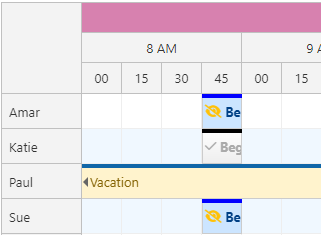
Improved Non-Working Time Visuals

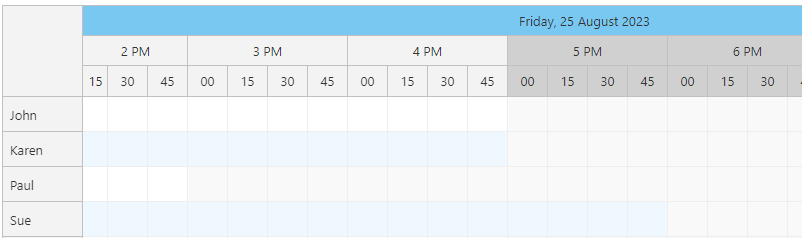
MTX Dispatcher and calendars have been updated to properly represent non-working times for different individuals based on their assigned ConnectWise working hours, time zone, and holiday schedule.

In the example below, Paul's working hours end at 3pm on Fridays and Sue's time zone is one hour behind the company's time zone.

Improved Non-Working Time Visuals

FeatureNilear Live

Include Staff Updates for Nilear Live

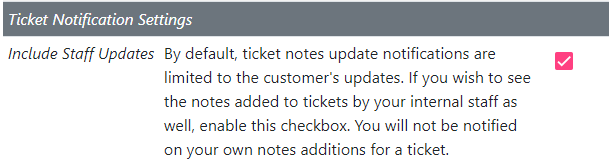
You can now receive Nilear Live notifications for notes added to tickets by your internal staff in addition to the customer's updates.

Include Staff Updates for Nilear Live

FeatureNilear Live

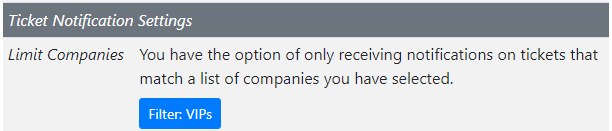
Limit Notifications by Company List for Nilear Live

Limit Notifications by Company List for Nilear Live

FeatureMTX: Tickets

Me Scheduling Options

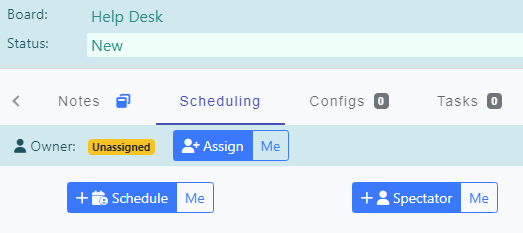
You can now easily assign yourself as owner, schedule yourself a dated schedule record or add yourself as a spectator by clicking on the corresponding "Me" tag.

Using the "Assign Me" option will assign you as the owner of the ticket.

Using the "Schedule Me" option will generate a dated schedule record and if no owner is currently assigned, you will also be assigned as the owner of the ticket.

Using the "Spectator Me" option will generate a spectator record for yourself and will not affect the owner value of the ticket.

Me Scheduling Options

FeatureConnectActive

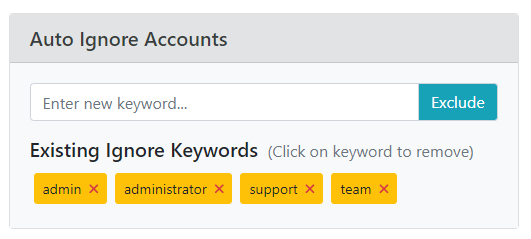
Auto Ignore Accounts

You can can instruct ConnectActive to ignore newly encountered AD/365 users and/or ConnectWise Contacts if they match an Ignore keyword.

Auto Ignore Accounts

FeatureMTX: Tickets

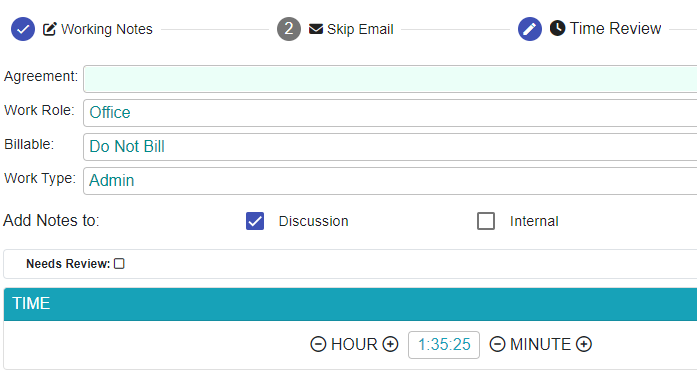
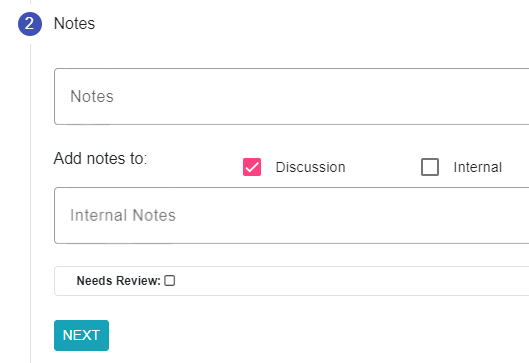
Time Entry Custom Fields

You can set and view custom fields on time entries.

Below is an example checkbox custom field labeled "Needs Review" under Time Review for a "Working on Ticket" session.

Time Entry Custom Fields

Below is an example checkbox custom field labeled "Needs Review" when manually creating a new time entry.

Time Entry Custom Fields

FeatureMTX: Tickets

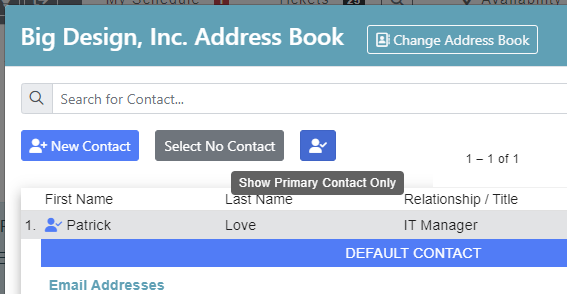
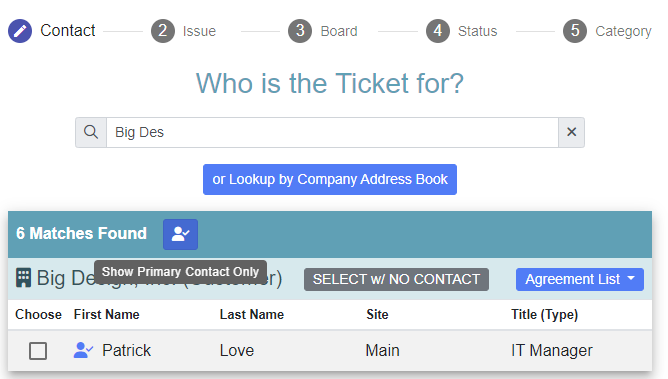
Filter on Primary/Default Contact

When using the Address Book or creating a new ticket, you can now use the Primary Contact icon to show only the default contact for the company.

Filter on Primary/Default Contact

Filter on Primary/Default Contact

FeatureMTX: Tickets

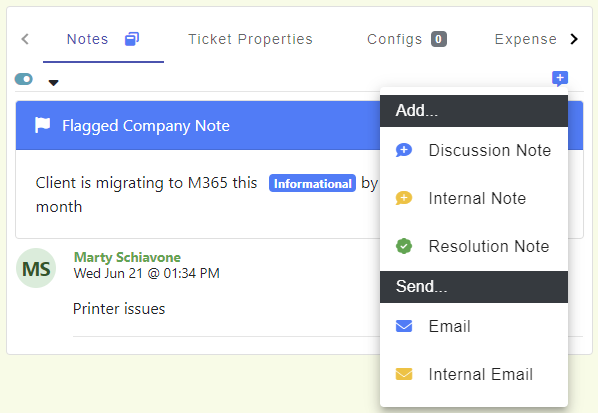
Additional Note & Email Options for 'Working on Ticket' mode

Add an ad-hoc discussion note, internal note, resolution note, email or internal email while in "Working on Ticket" mode.

Use cases include if you need to send an interim email while still live working on a ticket or add a note against the ticket separate from your working notes.

Additional Note & Email Options for 'Working on Ticket' mode

FeatureMTX: My Schedule

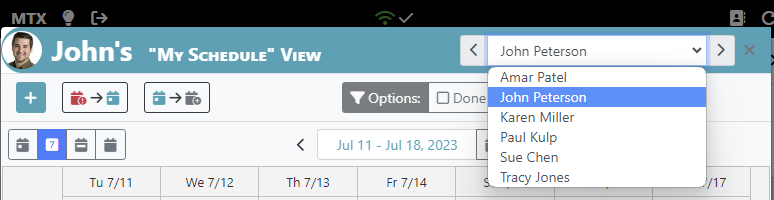
Cycle-thru Team Schedules

When using the "My Schedule" view for a team member, you can now easily cycle thru other team member schedules using either the drop-down list or forward & back buttons.

Cycle-thru Team Schedules

FeatureMTX: Tickets

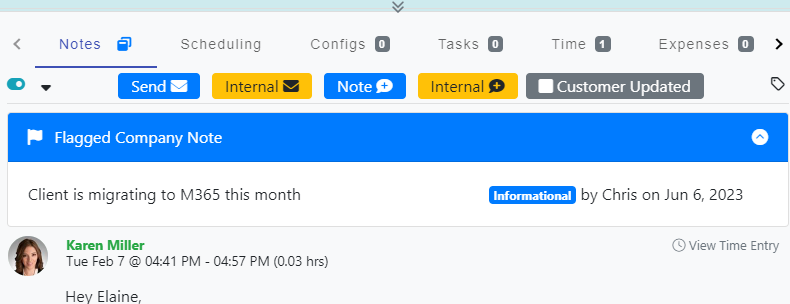
Flagged Company Note

Company Notes that have been marked as flagged in MTX or ConnectWise Manage will now be displayed at the top of the Ticket's Notes panel. This is an addition to MTX's Company Status and Company Status Custom Note alerts.

Flagged Company Note

FeatureMTX: Tickets

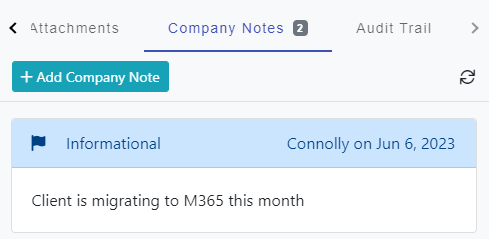
Company Notes

A Company Notes tab is now included when viewing a ticket or activity and allows one to add, edit, and remove notes associated with the company.

Company Notes

FeatureConnectActive

Prorate on All Additions

By default, ConnectActive will only create prorated Agreement Additions when the count for an agreement addition has increased over the previously invoiced count. If you prefer, you can have ConnectActive create prorated Agreement Additions anytime an addition occurs, regardless if the overall count is less than or equal to the previously invoiced count for the month.

For example, an Agreement Addition dropping from 10 users to 8 users during the first week of the month and then increasing to 9 users during the second week of the month. In this example, the client has already been invoiced for 10 users so there is no reason to generated a prorated Agreement Addition. However, if you enabled the new "Prorate All Additions" checkbox under ConnectActive -> Prorating tab, ConnectActive would have generated a prorated Agreement Addition when the new user was added during the second week.

FeatureMTX: Tickets

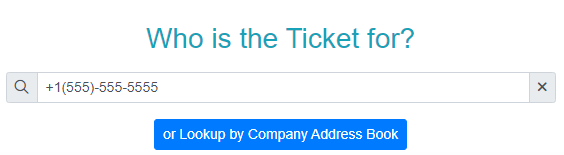
Phone Number Lookup

When looking up a contact for a new ticket, you can now supply a phone number as the lookup parameter.

Phone Number Lookup

You can also provide a direct link to the New Ticket tab and pass a phone number for potential phone system integration.

Usage: https://app.nilear.com/mtx/new?lookup=[phone_number]

Example: https://app.nilear.com/mtx/new?lookup=+1(555)-555-5555

FeatureMTX: Tickets

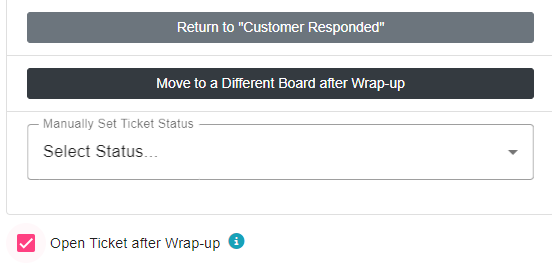
Open Ticket after Wrap-up

In the event you wish to perform some additional administrative tasks against a ticket after completing your "Work on Ticket" session, MTX can open the Ticket Summary View again for the ticket after Wrap-up by enabling the checkbox under the Wrap-up steps.

Open Ticket after Wrap-up

FeatureMTX: Tickets

In-house Updates with Nilear Live

In-house Updates will now also be broadcast to the user's Nilear Teams chat if their Nilear Live is configured.

In-house Updates with Nilear Live

FeatureMTX: Tickets

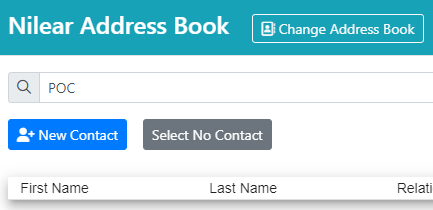
Contact Types included in Address Book Lookup

When using the search bar for the Address Book, the query will now also compare the lookup value to the contact's type, such as POC.

Contact Types included in Address Book Lookup

FeatureMTX: Tickets

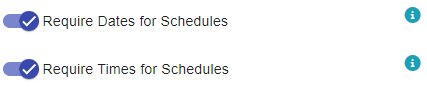
Require Date or Date & Time for Schedules

Under My Tickets Settings (https://app.nilear.com/settings/my-tickets), you can now specify if schedule records require a date or date & time for new entries.

Require Date or Date & Time for Schedules

FeatureConnectActive

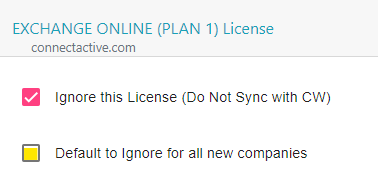
Default to Ignore License

When ignoring a Microsoft 365 License, you now have the option to default it to Ignored for all company syncs.

Default to Ignore License

FeatureMTX: Tickets

Deep Search for Ticket Configurations

When searching for configurations under a ticket, MTX will perform a deep search on all values of the company configurations, such as matching a Serial Number.

Deep Search for Ticket Configurations

FeatureMTX: Tickets

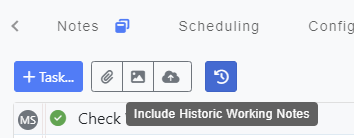
Toggle Historic Working Notes

The Working Notes section now includes a "Historic Notes" button, allowing you to hide historic notes within the section to streamline the view for open tasks and active notes.

Toggle Historic Working Notes

FeatureConnectActive

Fine Control of Enabling/Disabling Prorating

Under a company's sync setting, you can now select whether agreement additions should automatically apply prorating if the parent agreement prorate is enabled or default to No Prorating.

Fine Control of Enabling/Disabling Prorating

Under the Agreement Addition Mapping, you can now select a specific prorating setting. "On" will only be applied if the parent agreement in ConnectWise has prorating enabled.

Fine Control of Enabling/Disabling Prorating

UpdateMTX: Tickets

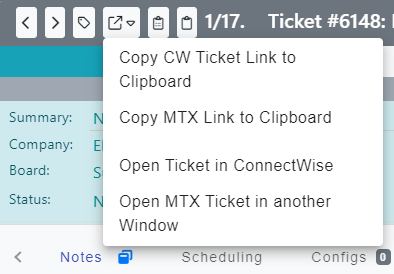
Direct Links for Ticket

On the Ticket Summary modal, you can now drop-down direct link options for the ticket.

Direct Links for Ticket

AnnouncementMTX: Tickets

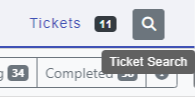
Full Ticket Search

In addition to MTX's Live Tickets view, you can now click a search icon on the Tickets tab to switch to a traditional ticket search, which can search across all boards/projects and closed tickets.

Full Ticket Search

Search Tips
*
You can use an asterisk between words to indicate wildcard character matches between words in for your search.
Example: RMM*Disk will match "RMM Low Disk Space"

^
You can use an caret at the start of a query to require matches start with the text provided.
Example: ^The will match all values starting with "The".

$
You can use an dollar sign at the end of a query to require matches end with the text provided.
Example: Past Due$ will match all values ending with "Past Due".

""
Quotes can be used to require an exact match only.
Example: "Past Due" for a summary query will match a ticket with "Past Due" for its summary but not a ticket with the summary "Client Past Due".

FeatureMTX: My Schedule

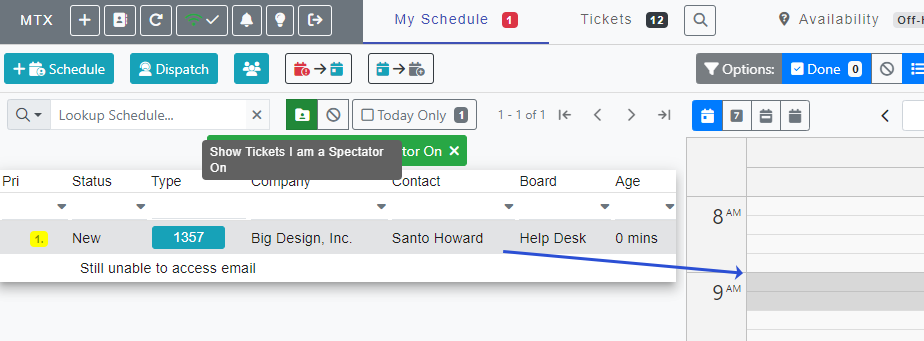
Show Tickets I am a Spectator On

On the My Schedule tab, you can now click on the button to view tickets you have only been assigned as a Spectator (schedule record with no date/time).

These schedule records can also be dragged onto the calendar to convert them to a schedule record with a date and time.

Show Tickets I am a Spectator On

FeatureMTX: Tickets

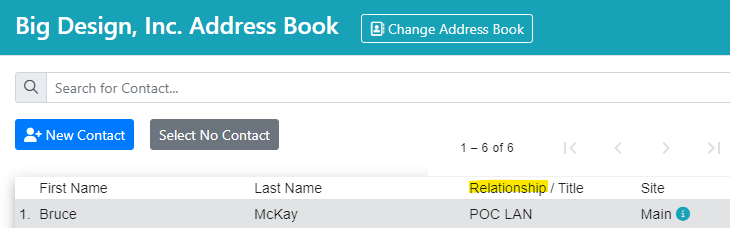
Contact Relationship

When viewing a company address book, the contact listing will now include the contact's relationship.

Contact Relationship

FeatureConnectActive

Pagination for Large Contact Lists

For company sync's with more than 250 contacts, ConnectActive will now apply pagination to improve browser performance.

Pagination for Large Contact Lists

FeatureConnectActive

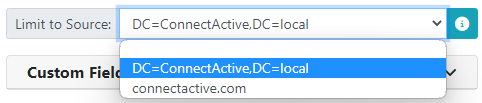
Limit Agreement Addition Scope to Sync Source

When mapping Agreement Additions for multi-tenant/AD environments, you can now select a "Limit to Source" value. When a Limit to Source is selected, ConnectActive will only include those users against the Agreement Addition that are also from the limit to source selected.

This is helpful for multi-tenant/AD environments in which you wish to separate out the Agreement Additions based on the tenant/AD the user originated.

Limit Agreement Addition Scope to Sync Source

FeatureMTX: My Schedule

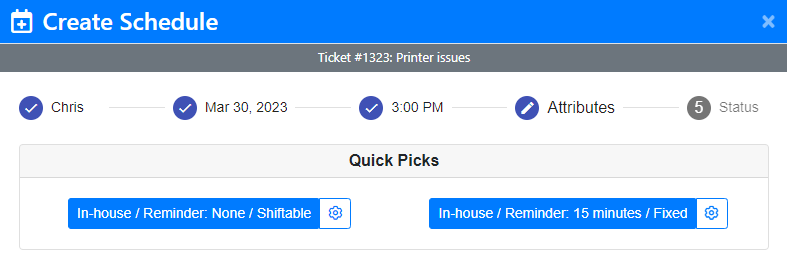
Schedule Attribute Quick Picks

When creating a schedule, you can now use customizable quick picks to set the schedule's attributes of Where, Reminder, and Shiftable/Fixed.

Schedule Attribute Quick Picks

FeatureConnectActive

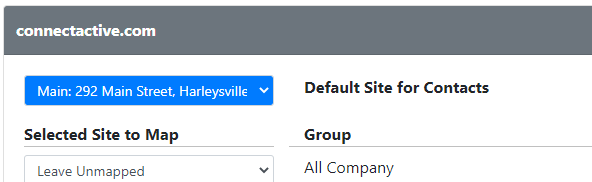
Default Site for Contact

You can now set a Default ConnectWise Site Address for contacts based on the user's sync source (Active Directory or Azure/365 Tenant).

Default Site for Contact

FeatureMTX: Tickets

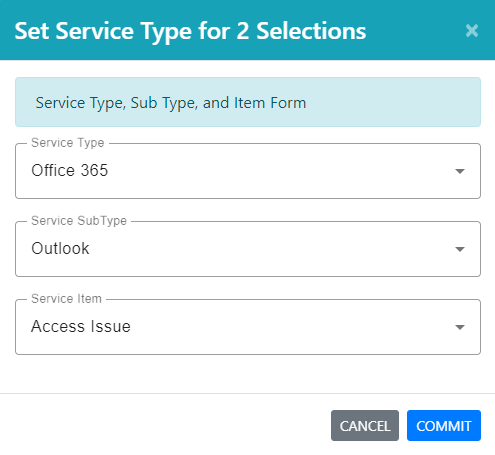
Set Service Type Added to Batch Actions

You can now select multiple tickets at once to set their Service Type, Sub Type, and Item.

Set Service Type Added to Batch Actions

FeatureMTX: Tickets

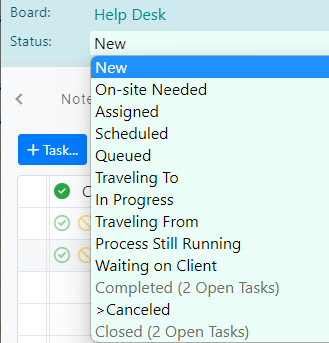
Ticket Statuses Limited for Tickets with Open Tasks

Resolved/Completed status options will now be disabled for tickets with open tasks.

Ticket Statuses Limited for Tickets with Open Tasks

FeatureMTX: Tickets

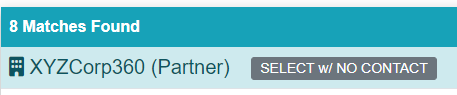
Select with No Contact

While searching for companies when creating a new ticket, a "Select w/ No Contact" option is now provided to select the company only for the ticket without a contact.

Select with No Contact

AnnouncementConnectActive

Tiered Pricing

Tiered Pricing allows you to apply specific per user pricing based on count ranges. For example, you can bill 14 users with the first 10 users @ at $200/user and the next 4 users at $150/user for $2,600 total.

Documentation

Pricing Schedule Example
StartEndPriceCostRule
151,5001,000Flat Rate
610250150Per User
1120200100Per User
214017590Per User
4115075Per User
FeatureMTX: Availability

Location: Other

In addition to setting one's location to Office, Home, On the Road, and Remote, you can now select "Other" and provide a Location name.

Location: Other

FeatureMTX: Availability

Location: Other

In addition to setting one's location to Office, Home, On the Road, and Remote, you can now select "Other" and provide a Location name.

Location: Other

FeatureConnectActive

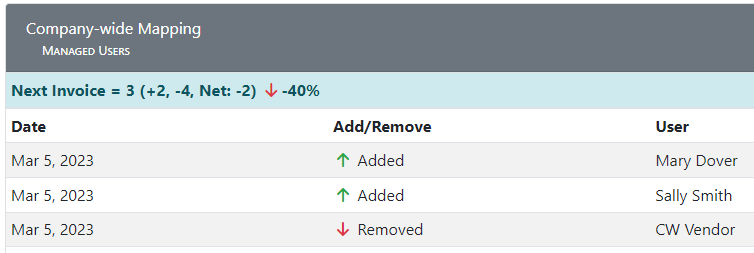
View All Upcoming Agreement Changes

ConnectActive can now provide a comprehensive list of Agreement Addition Changes made across all customers since they were last invoiced. This new report can be found on ConnectActive's "Changes" tab.

View All Upcoming Agreement Changes

FeatureMTX: Tickets

Company Site Info

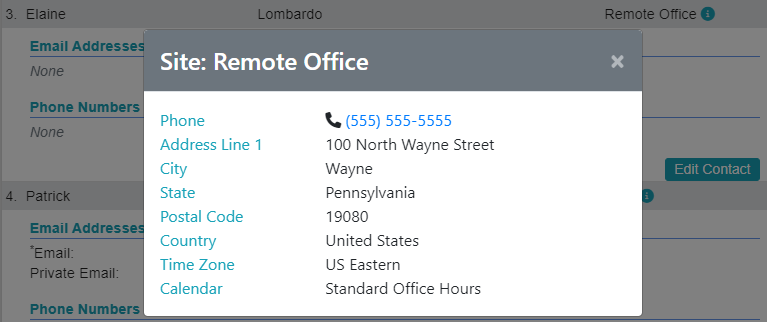
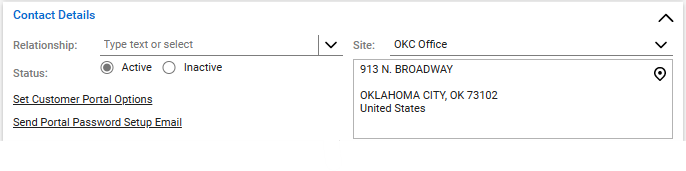
Within the Address Book, you can click on a contact's site to view site details. You can also access the site details under Ticket Properties.

Company Site Info

FeatureMTX: My Schedule

Additional Schedule Context Menu Items

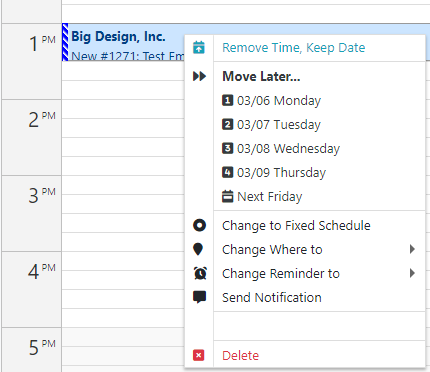
Right-clicking a schedule to bring up its Context Menu will now provide the options to alter its Fixed/Shiftable, Where, and Reminder properties as well as sending a notification.

Additional Schedule Context Menu Items

Bug FixScore My Team

Real-time Ticketing Correction for Hours Deducted

The scoring logic for Real-time Ticketing was updated to better interpret hours deducted on time entries entered. This will particularly improve scoring on tickets that were heavily PSR'd in MTX.

FeatureMTX: Tickets

Use Shift-Key to Select Range

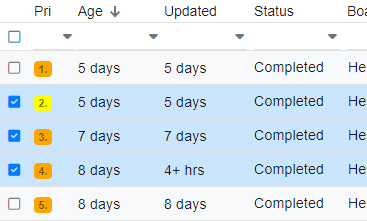
When selecting tickets, you can now use the shift key to select a group of tickets at once.

Use Shift-Key to Select Range

FeatureMTX: Tickets

Move Email to CC List on CatchAll Change

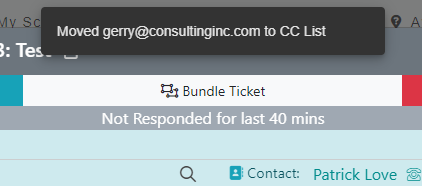
When changing the company/contact of a CatchAll ticket, MTX will automatically move the original incoming email address to the ticket's CC List.

Move Email to CC List on CatchAll Change

FeatureMTX: Tickets

Direct Company Address Book Link

For convenience, we have added the Company Address Book Lookup as a link on the MTX tab.

Direct Company Address Book Link

FeatureMTX: Tickets

Bundle/Merge Multiple Tickets

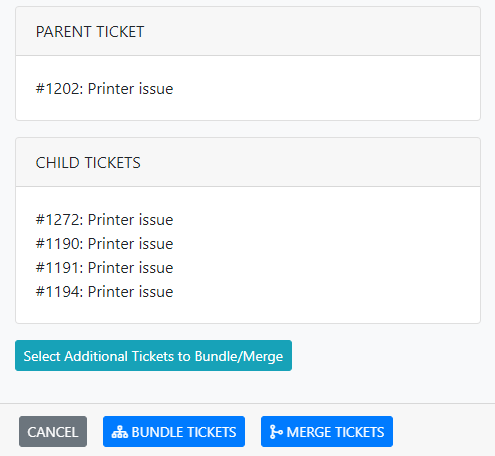
When bundling/merging tickets, you can now use a "Select Additional Tickets to Bundle/Merge" button to select multiple tickets to be included as part of the bundling/merging operation.

Bundle/Merge Multiple Tickets

FeatureConnectActive

Skip Once Option

When first syncing a new customer, one may be sure of 99% of the users listed but there may be one or two users one cannot yet make a decision to activate/deactivate/ignore. Rather than waiting to sync until one knows the answer, a "Skip Once" option for the user is now provided to skip the users you are not ready to commit to a decision and allow the remaining users to sync.

Skip Once Option

UpdateConnectActive

Update Serial Number

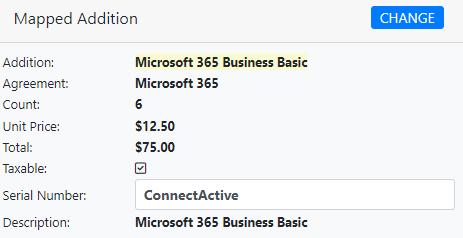
Previously, ConnectActive would set the Serial Number (if not already set to a value) of an Agreement Addition to "ConnectActive". We have dropped this automatic settings and you can now update the Serial Number directly if you wish from the Addition Mapping in ConnectActive.

Update Serial Number

FeatureMTX: Tickets

Linkable Ticket #s

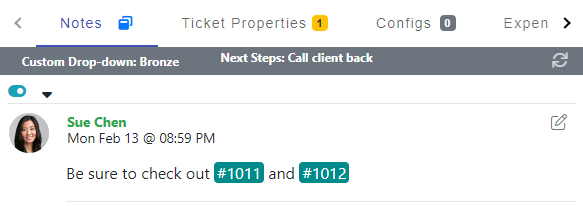
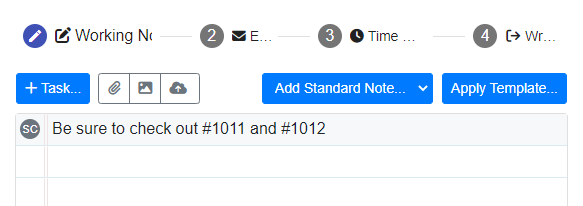
When using the format #[ticket_number] in your notes/email, MTX will automatically make the ticket # clickable to open the ticket in MTX.

Linkable Ticket #s

Note: Working Notes will not highlight ticket #s but they can still be clicked on to open the ticket.

Linkable Ticket #s

FeatureMTX: Tickets

Custom Field Column

You can now include a ticket custom field column in your Tickets tab view in MTX.

Custom Field Column

FeatureMTX: Tickets

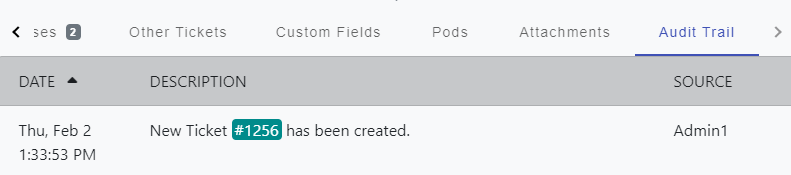
Sort Audit Trail by Date

You can now change the sorting order of the Audit Trail by date.

Sort Audit Trail by Date

FeatureMTX: Tickets

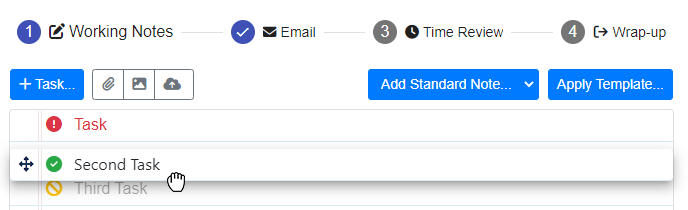
Reorder Notes/Images with Drag-n-Drop

You can now use drag-n-drop to change the order of your Working Notes or images in emails.

Reorder Notes/Images with Drag-n-Drop

FeatureMTX: Tickets

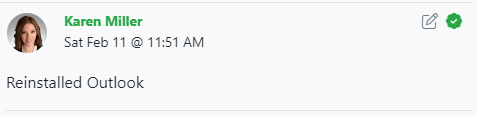
Resolution Note Icon

MTX will display a green check badge for ticket notes or time entries flagged as a resolution note.

Resolution Note Icon

FeatureMTX: Tickets

Edit Note Flags

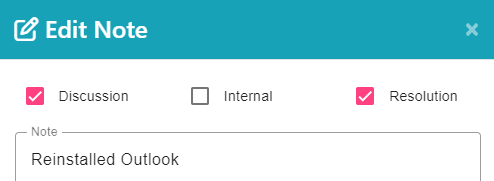
You can now view and edit the Discussion, Internal, and Resolution Flags for an existing note by clicking on the note's Edit icon.

Edit Note Flags

FeatureMTX: Tickets

Drop-down List of Bundled Tickets

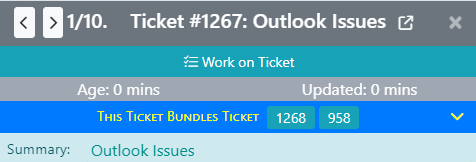
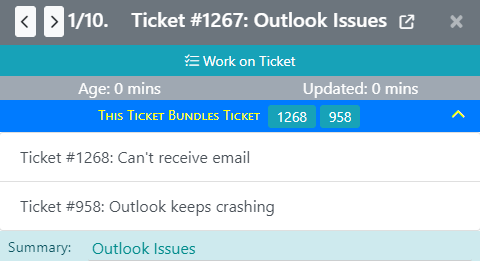
You can now click on the bundled tickets information bar to open up the list of bundled tickets included with the ticket.

Drop-down List of Bundled Tickets
FeatureConnectActive

Office 365 Contact Address to Site Mapping

If an Office 365/Azure AD user has address information populated, ConnectActive will attempt to match their address to a Company Site in ConnectWise. As Active Directory does not provide this information, this feature is limited to only syncs that include Office 365/Azure AD.

Office 365 Contact Address to Site Mapping

UpdateConnectActive

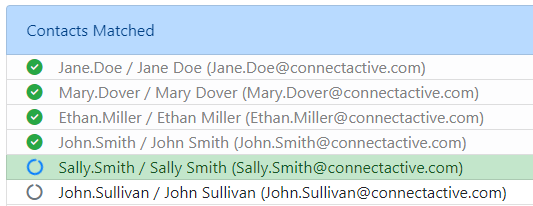
Contact Matching Performance Boost

We have improved contact matching performance by 33%.

Contact Matching Performance Boost

FeatureNilear Live

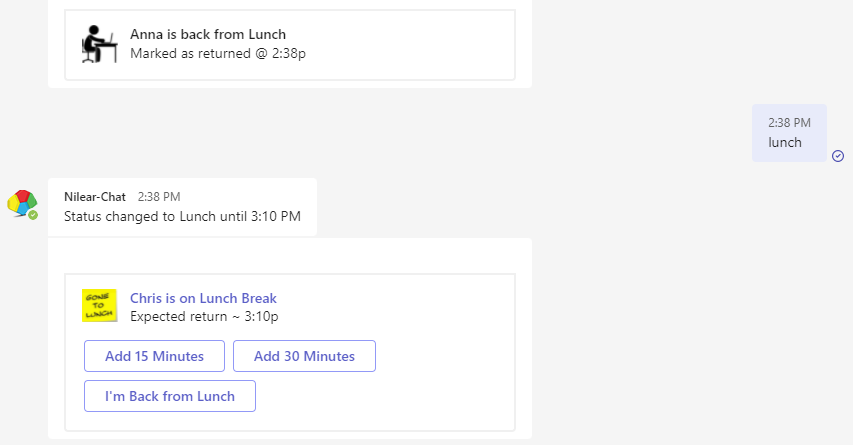
Lunch Updates

You can now receive Teams updates for staff taking and returning from lunch. In addition, you can now type "lunch" into your Teams Nilear Chat to mark yourself as taking lunch.

Lunch Updates

FeatureMTX: Availability

Include Travel Schedules

When a tech is listed as Inactive but has a Travel To/From currently due, the Availability Board will display the Travel schedule record.

Include Travel Schedules

FeatureMTX: Tickets

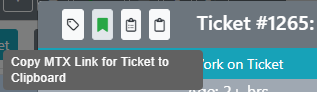
Copy MTX Link for Ticket to Clipboard

MTX Tickets can be accessed directly using the URL https://mtx.link/[ticket#]. When viewing a ticket in MTX, you can now click on the bookmark icon to copy the MTX Link for the ticket to your clipboard.

Copy MTX Link for Ticket to Clipboard

FeatureMTX: Tickets

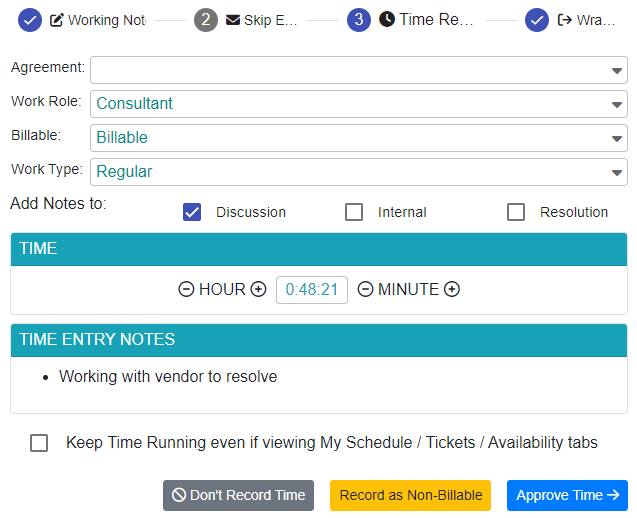
Time Review Options

While working on a ticket in MTX, the Time Review step provided two options: "Don't Record Time" and "Approve Time". We have added a third option to "Record as Non-Billable".

Time Review Options

FeatureMTX: Tickets

CC List Copy

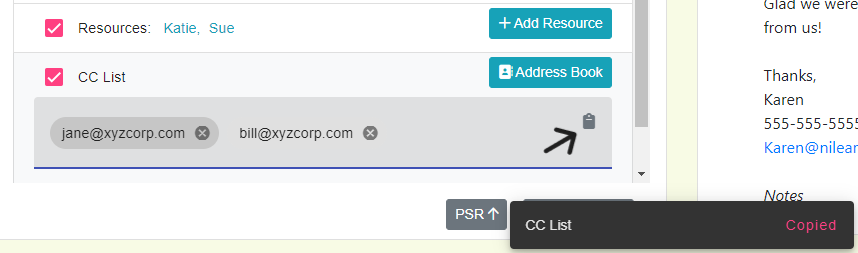
A clipboard icon has been added to the CC List to facilitate copying the CC email addresses to the clipboard.

CC List Copy

UpdateMTX: My Schedule

Project Schedule Color Coding

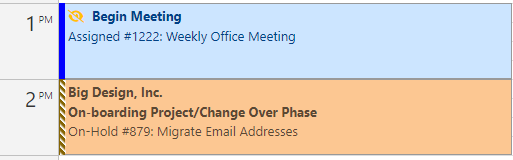
MTX will now display project schedules in brown rather than service ticket blue.

Project Schedule Color Coding

UpdateMTX: Tickets

Dark Mode Enhancements

81 components had their dark mode color contrast adjusted to improve MTX's overall dark mode experience.

UpdateMTX: Tickets

Agreement Type

The Agreement drop-down for tickets in MTX will now include the Agreement Type in parenthesis next to the Agreement Name.

Agreement Type

FeatureMTX: Tickets

Remove Invalid Email Addresses

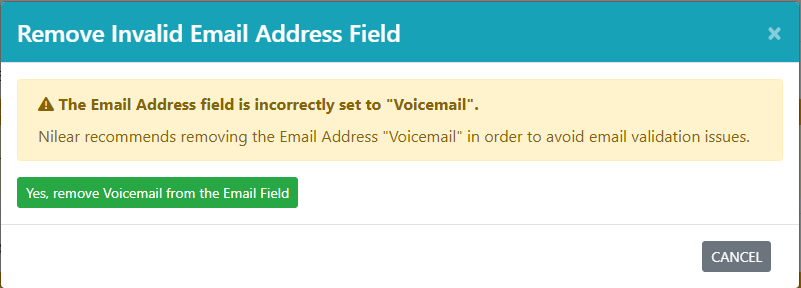
For some MSPs, tickets generated from voicemails incorrectly set the Email Address field to the value "Voicemail", causing email validation issues. MTX will now prompt if you wish to remove the invalid email address.

Remove Invalid Email Addresses

FeatureNilear Live

Nilear Live Schedule Notification

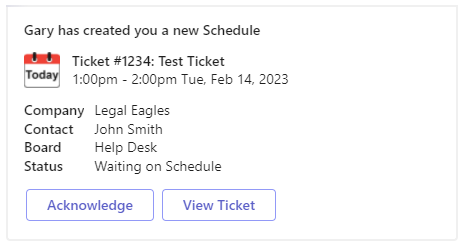
You can now have Nilear Live inform you when someone schedules you for a ticket or has updated one of your ticket schedules.

Nilear Live Schedule Notification

This feature can be enabled under Nilear -> Nilear Live or if you have the Nilear Bot already configured, you can type "schedule on" into your Nilear Bot conversation.

AnnouncementNilear Live

Nilear Live Dropping Slack Support

Nilear Live will be transitioning to Microsoft Teams Adaptive Cards for an improved end-user experience. Unfortunately, this means Nilear Live has discontinued support for Slack. Current Slack users who wish to continue to use Nilear Live are encouraged to transition to the Teams version.

FeatureConnectActive

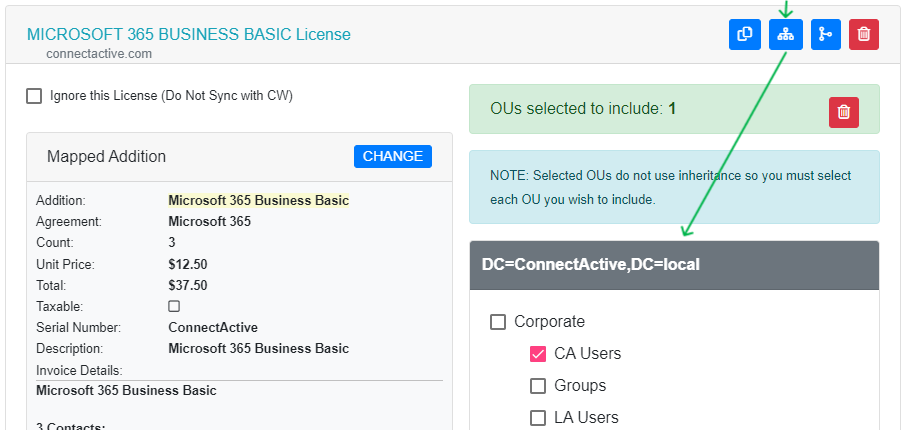
Map an Office 365 License to an Agreement Addition w/ OU Filter

Sometimes an MSP needs to divide licenses across several Agreement Additions for a client. For example, when a client wants to separate the Microsoft 365 billing by location (CA Office vs LA Office).

Map an Office 365 License to an Agreement Addition w/ OU Filter

Documentation

FeatureMTX: My Schedule

Open Others' My Schedule View

You can now open the "My Schedule" view for other members, allowing you to view and filter in detail an individual's schedules.

Open Others' My Schedule View

FeatureMTX: My Schedule

Dynamic Unavailable Schedule Entries

When a user is marked as unavailable, such as Lunch or PTO, MTX will now display a dynamic schedule record indicating the user's current unavailable status.

Dynamic Unavailable Schedule Entries

FeatureMTX: Availability

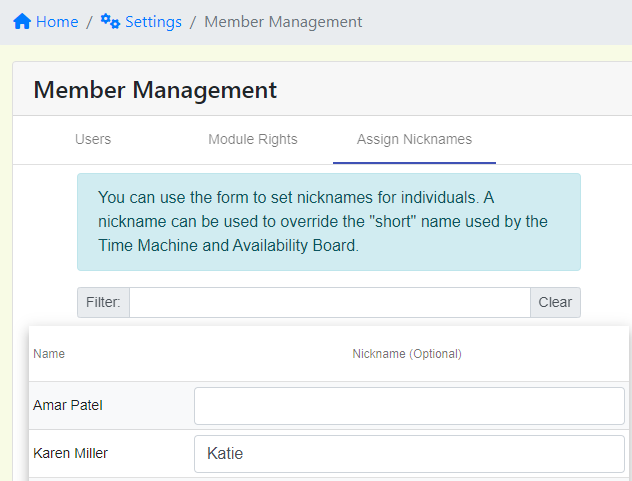
Assign Nicknames

You can now assign nicknames for individuals. A nickname can be used to override the "short" name used by the Time Machine, Availability Board, and Dispatcher. This settings is under Nilear -> Settings -> Member Management -> Assign Nicknames tab (https://app.nilear.com/settings/members).

Assign Nicknames

FeatureMTX: Tickets

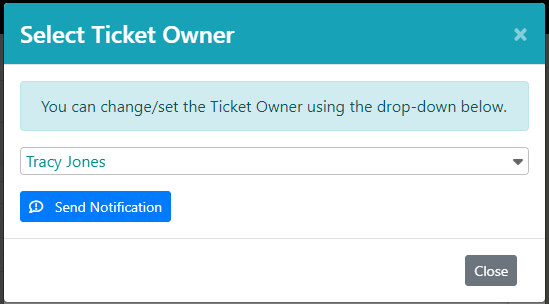
Ticket Owner Notification

After setting a new owner for a ticket, you will now have the option to send a notification of the assignment to the owner.

Ticket Owner Notification

FeatureMTX: Tickets

FYI: Other Tickets In Progress for Company

When viewing or working on a ticket in MTX, MTX will now show if other employees are also working on tickets for the same company. This is to help avoid duplicate work in the event a company submits several tickets for the same issue.

FYI: Other Tickets In Progress for Company

FeatureMTX: Tickets

Voicemail Email Addresses

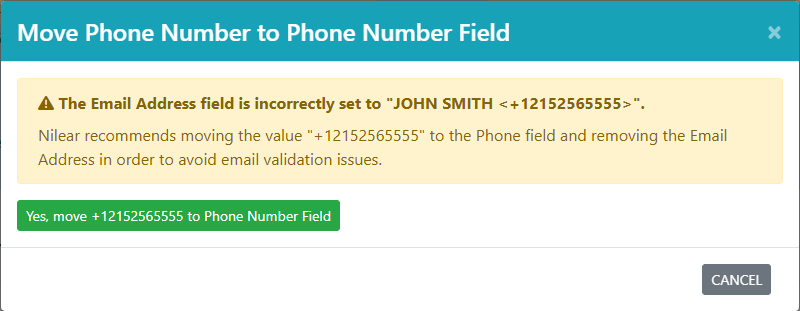
For some MSPs, tickets generated from voicemails incorrectly set the Email Address field to the voicemail number, causing email validation issues. MTX will now prompt if you wish to move the phone number to the Phone Number field and remove the invalid email address.

Voicemail Email Addresses

FeatureConnectActive

Company-Wide Mapping with Groups/Licenses

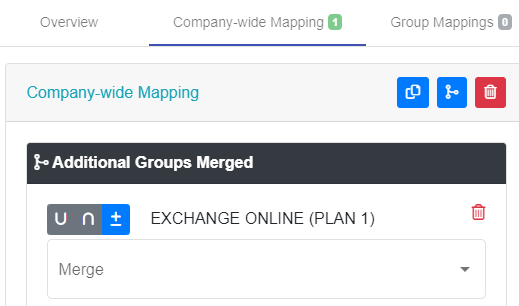
You can now choose to exclude groups or licenses from a Company-wide Mapping. Use case, you wish to charge all users as "Full-time Support" except those users assigned the license "Exchange Online (Plan 1)".

Company-Wide Mapping with Groups/Licenses