Tagged tickets can assist in organizing high priority tickets, long term tickets and/or tickets assigned to others that you wish to monitor.
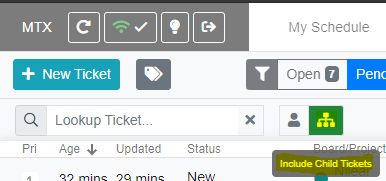
Once you have tagged a ticket, you can view your tagged list by clicking on the Tags icon on the "Tickets" tab.
In the Tag view, tickets that have been changed by others will be flagged as Changed. The Tags icon will turn orange when at least one of your tagged tickets have been changed.
Tagging a Ticket
You can tag and untag a ticket by opening the ticket's summary view in MTX and clicking on its Tag icon.
Change Definition
A change is defined as a ticket being updated by someone other than yourself and having at least one of the following ticket properties changed: Customer Responded, Assigned Schedules, Ticket Owner, Time Entries, Ticket Notes, Company, Contact, Status, or Board.
Removal of the Changed Status
A tagged ticket will be moved to No Changes if you update the ticket yourself or you open the ticket's summary view in MTX.
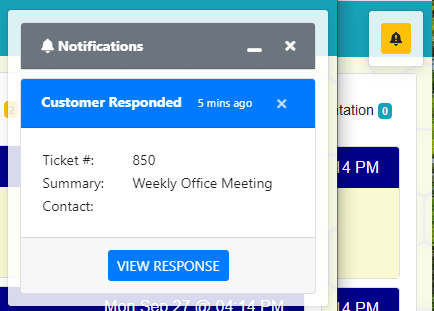
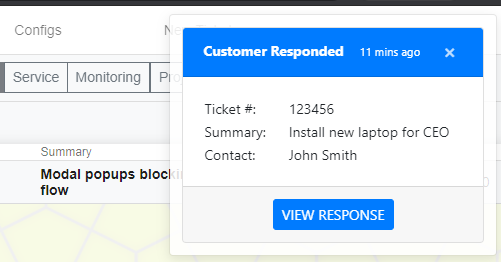
Customer Responded
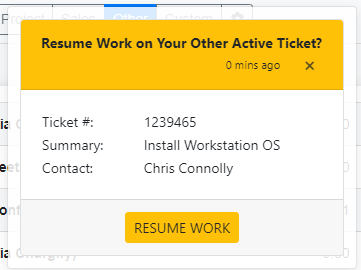
If a tagged ticket has its Customer Updated flag enabled, MTX will automatically open the ticket's summary view, even if you are not otherwise associated with the ticket.
Tag Management
Tagged tickets will remain on your list even after they have been closed or deleted. As you are limited to 50 tagged tickets, it is recommended you untag tickets that are not likely to become active again.