Nilear changes in 2024

57 changes, newest first.

FeatureMTX: General

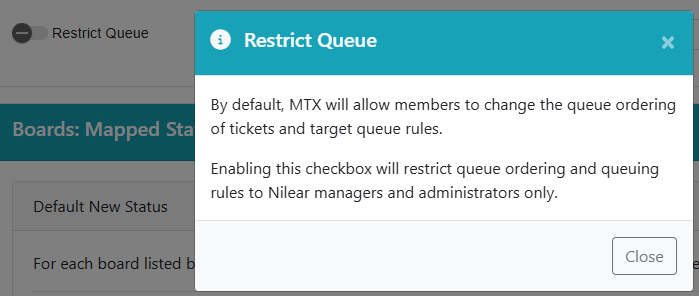
Restrict Queue Changes

By default, MTX will allow members to change the queue ordering of tickets and target queue rules.

You can now choose to restrict queue ordering and queuing rules to Nilear managers and administrators only. This option is under Nilear -> Settings -> My Tickets -> MTX Interface.

Restrict Queue Changes

FeatureMTX: General

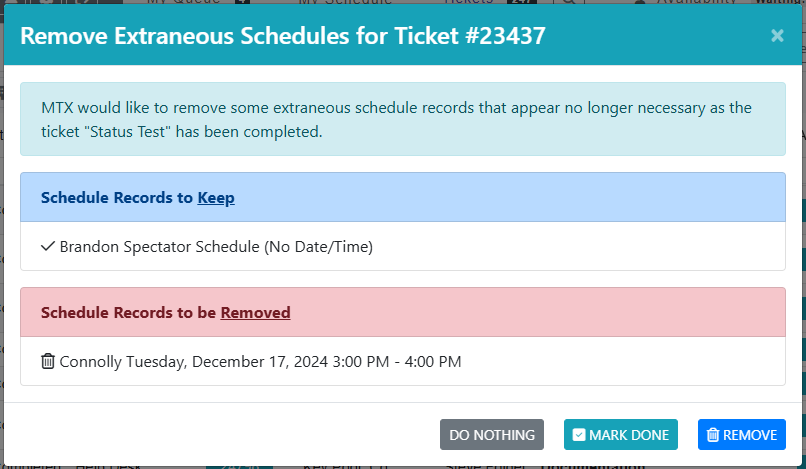
Mark Done Option for Extraneous Schedules

When prompted to remove extraneous schedules, you now have the additional option to mark the extraneous schedules as done.

Mark Done Option for Extraneous Schedules

FeatureMTX: General

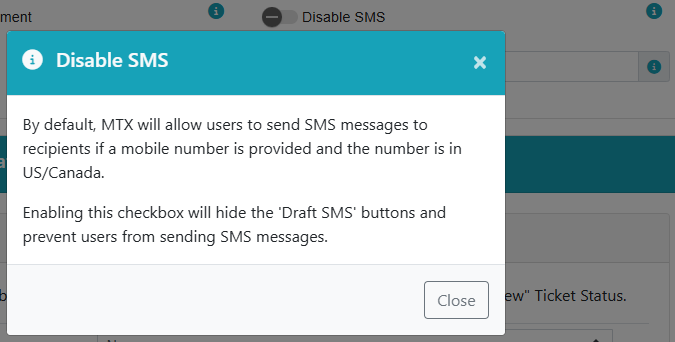
Disable SMS

Administrators now have the ability to disable SMS in My Tickets (MTX).

Disable SMS

AnnouncementMTX: General

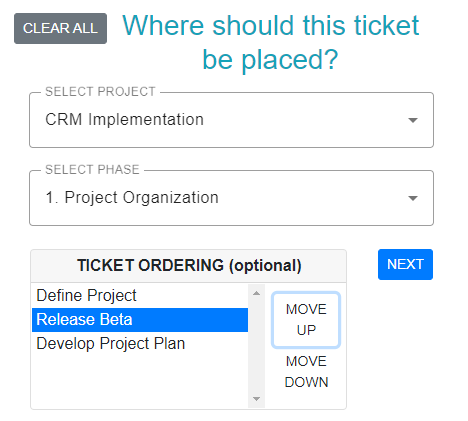
MTX 5.0 Beta with Ticket Queuing!

MTX 5.0 Beta introduces a new Ticket Queuing system, six additional data columns for tickets (including SLA Status), control over ticket data column order/display, over-budget notifications, skill management, and tracking of tickets you have viewed.

Ticket Queuing

Ticket Queueing greatly reduces the need to individually schedule tickets with specific dates & times and provides a more dynamic approach to assigning and ordering work.

We recommend team members watch our 3 minute video below covering working on tickets in their queue.

We recommend managers also watch the following 11 minute video detailing how to add and manage tickets in the queue.

Additional Ticket Data Columns

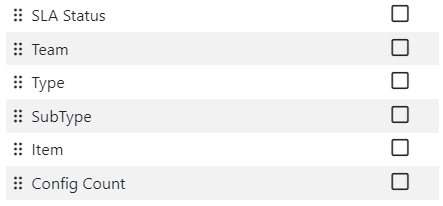
The Ticket's tab in MTX can now include the additional data columns of SLA Status, Team, Source, Type, SubType, Item, and Config Count. In addition, these columns can be reordered and any data columns can be turned on/off as you prefer. You can access this new functionality by clicking on the button under the MTX Tickets tab.
MTX 5.0 Beta with Ticket Queuing!

Over-Budget Notification

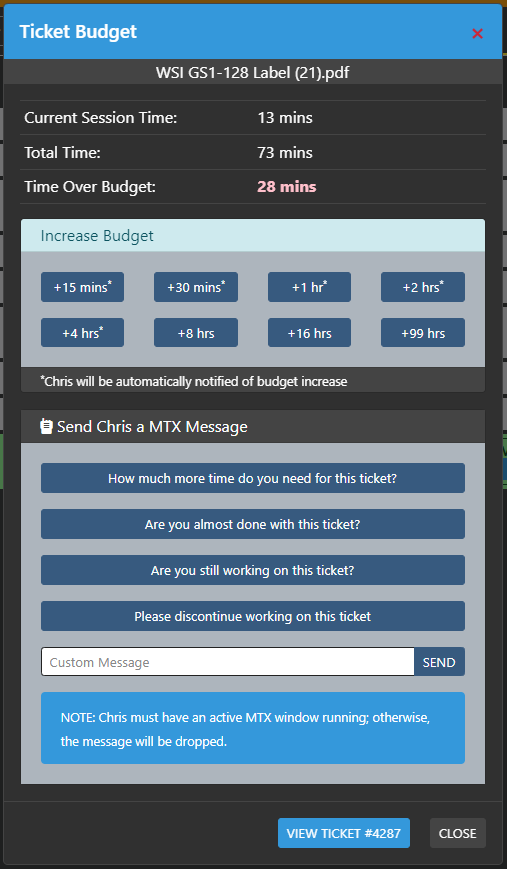
The Availability Board and Time Machine will now indicate if a ticket is over budget. The budget time is determined first by the schedule record assigned. If the user is scheduled for an hour, than the budget will be set for an hour. If there is no pre-existing schedule record, the ticket's Budget Hours value will be used.

When no pre-existing schedule record or ticket budget value has been set, the Default Budget value defined under Nilear -> Settings -> My Tickets will be used. This initial default value is set to 45 minutes.

MTX 5.0 Beta with Ticket Queuing!

MTX 5.0 Beta with Ticket Queuing!

Tickets you have Viewed

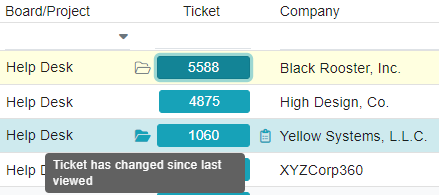
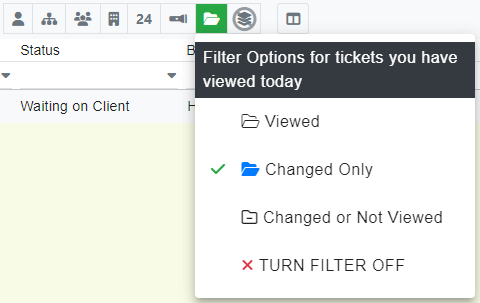
MTX will now include an opened folder icon next to each ticket you have opened and viewed for the day. The icon will turn a solid color when there has been a change to the ticket since you last viewed it that day. In addition, the ticket you last opened will appear highlighted in the Ticket listing.
MTX 5.0 Beta with Ticket Queuing!

New filter options have also been provided for tickets you have viewed for the day.
MTX 5.0 Beta with Ticket Queuing!

FeatureMTX: My Schedule

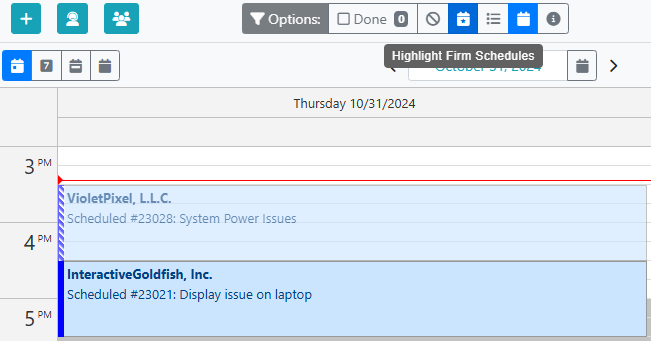
Highlight Firm Schedules

The My Schedule view now provides a Highlight Firm Schedules option.

Highlight Firm Schedules

FeatureMTX: General

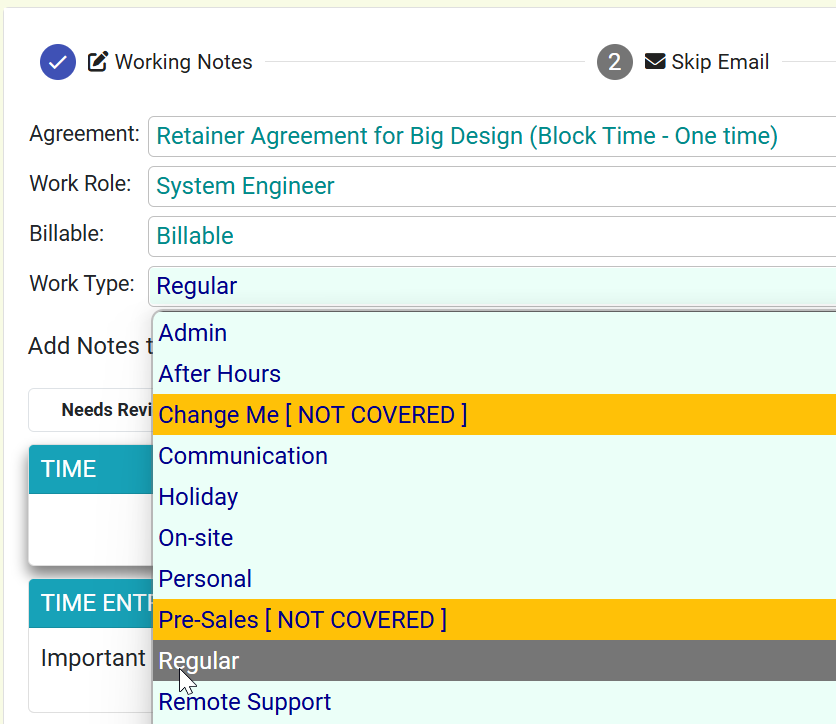
View Covered/Not Covered Work Types

When wrapping up a ticket, you can now easily see which work types are not covered by the current agreement.

View Covered/Not Covered Work Types

FeatureMTX: General

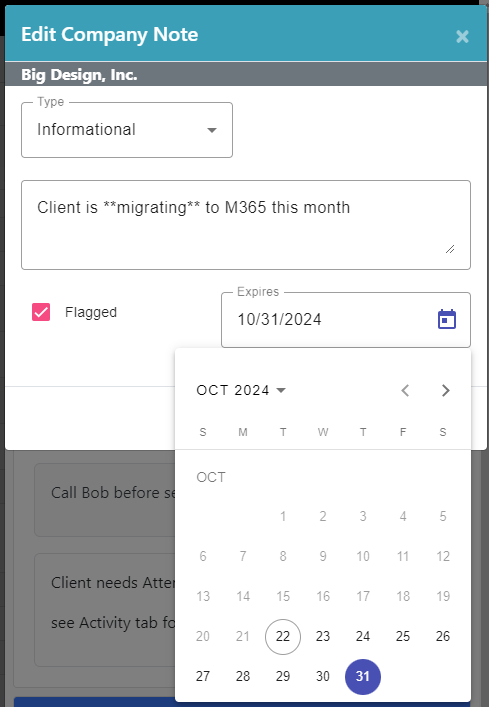
Expire Custom Alert/Flagged Notes

MTX will can now parse company and contact custom alerts and flagged company notes containing the text "[Expires YYYY-MM-DD]". If an expires text is encountered and the expires date has passed, MTX will no longer display the alert or flagged company note.

For example, "Client is migrating to M365 this month [Expires 2024-10-31]" as a company custom alert message will display in MTX until November 2024.

When editing a flagged company note in MTX, an Expires date picker is provided for convenience.

Expire Custom Alert/Flagged Notes

UpdateMTX: General

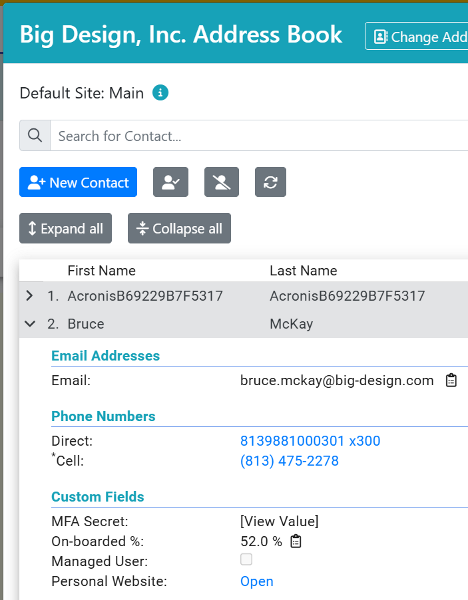
Address Book Updates

You can now see the company's default site information and contact custom fields from the address book. Contacts are collapsed by default for a cleaner contact listing.

Address Book Updates

FeatureMTX: General

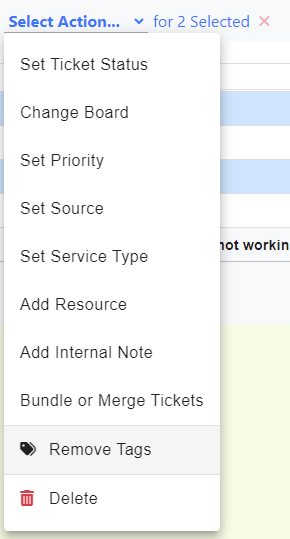
Bulk Remove Tagged Tickets

When using the Tagged Tickets view, you can now select "Remove Tags" from the bulk action drop-down.

Bulk Remove Tagged Tickets

UpdateMTX: Availability

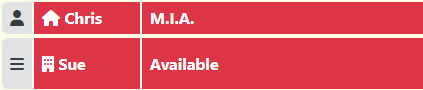
Missing In Action for Others Renamed to Available

The M.I.A. status has been renamed to "Available" for other users. M.I.A. will continue to show when viewing your own availability status.

Missing In Action for Others Renamed to Available

FeatureMTX: General

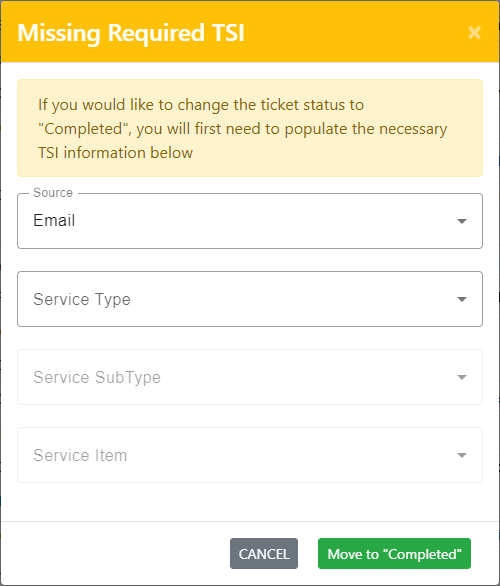
New TSI Requirement Workflow

When attempting to move a ticket with missing required TSI information to a Resolved state, MTX will now present a popup to facilitate the setting of the TSI information.

New TSI Requirement Workflow

UpdateMTX: General

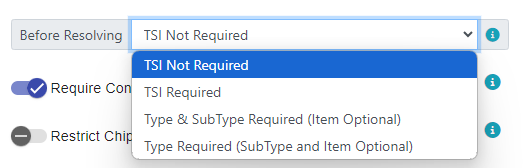
More Control over TSI Requirements

You can now specify which TSI properties are required before allowing a ticket to be moved to a Resolved state.
More Control over TSI Requirements
UpdateMTX: General

Expenses Tab renamed to Expenditures

The Expenses tab in MTX has been renamed to Expenditures to more reflect its function of including both ConnectWise Expense and Product items under a single tab.

Expenses Tab renamed to Expenditures

FeatureNilear Live

Control Nilear Live Ticket Link Destination

You can now control under your Nilear Live settings if a provided ticket link should be directed to ConnectWise PSA or MTX.

Control Nilear Live Ticket Link Destination

FeatureMTX: General

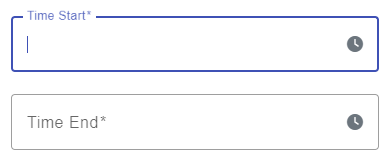
Set Time Field to the Current Time

When manually creating time entries, such as when adding a Charge Code, a clock icon is now provided, which will set the time field to the current time.

Set Time Field to the Current Time

FeatureConnectActive

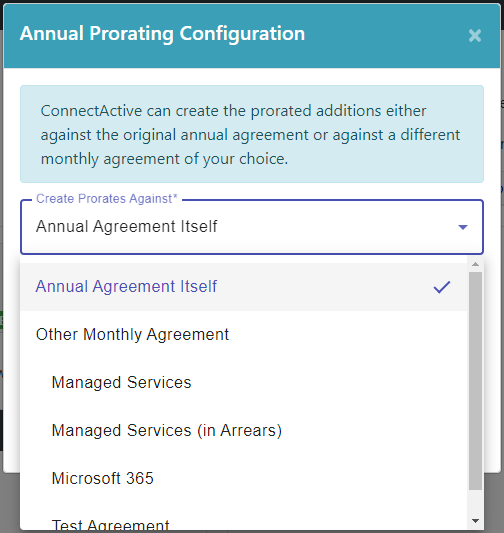
Creating Prorated Addition under a Different Agreement

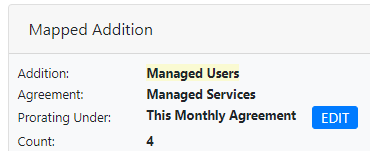
You can now opt to have the prorated additions created under a different monthly-based agreement of your choice. This may be helpful for MSPs that do not wish their master agreements to be cluttered with prorated additions or are using annually-based agreements.

Creating Prorated Addition under a Different Agreement

FeatureMTX: General

Notify Enroute

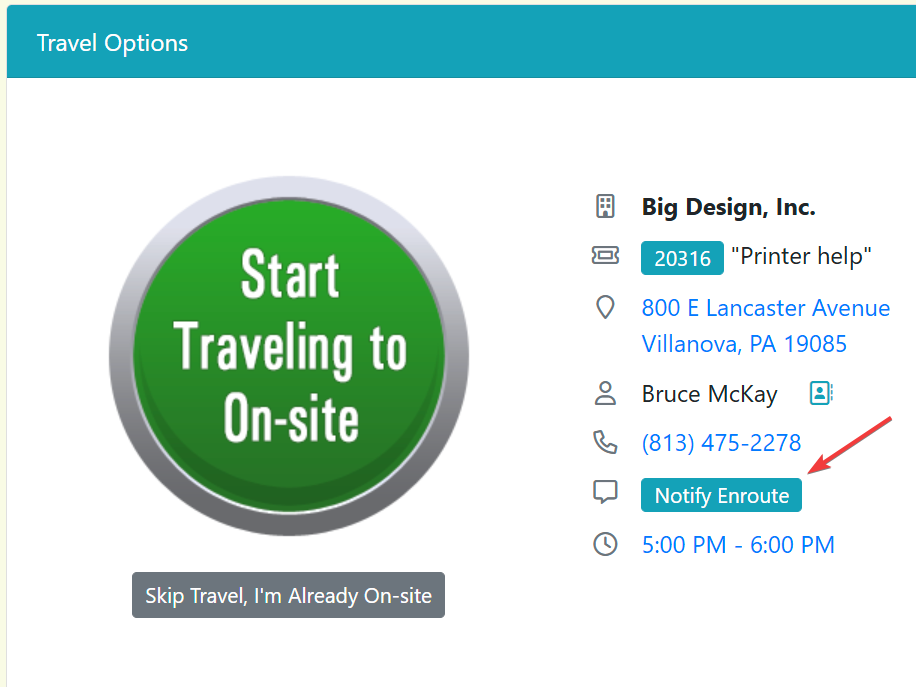
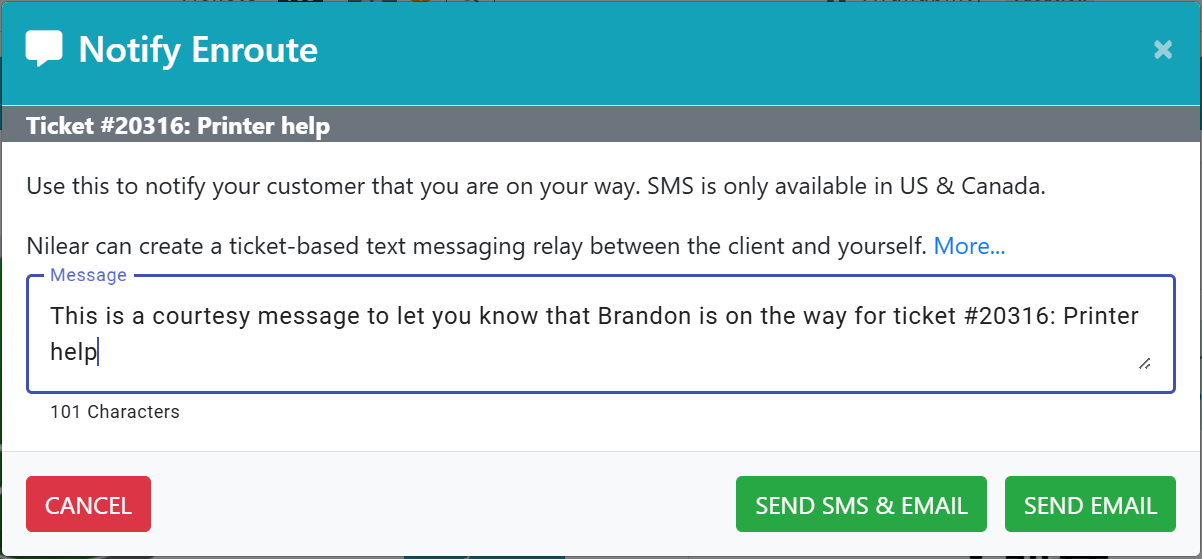
For on-site schedules, MTM users can now easily notify clients that they are on their way by sending an email or SMS.

Notify Enroute

Notify Enroute

FeatureScore My Team

Deactivate ScoreBooks

ScoreBooks can now be deactivated/activated by updating its "Active" checkbox. ScoreBooks that have been deactivated will only show under management accounts and will not be listed by default.

Deactivate ScoreBooks

FeatureConnectActive

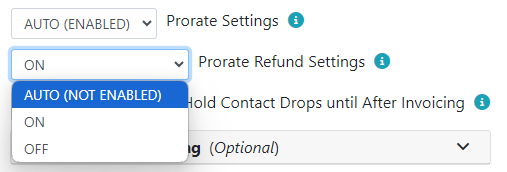
Fine Control of Enabling/Disabling Prorate Refunding

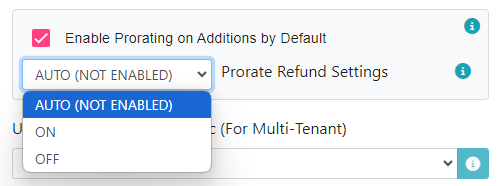
Under a company's sync setting, you can control whether agreement additions should automatically apply prorate refunding if the parent agreement prorate is enabled.

Fine Control of Enabling/Disabling Prorate Refunding

Under the Agreement Addition Mapping, you can now select a specific prorate refunding setting. "On" will only be applied if the parent agreement in ConnectWise has prorating enabled.

Fine Control of Enabling/Disabling Prorate Refunding

FeatureConnectActive

Prorating an Annual Agreement

For annual-based agreements with prorating enabled, ConnectActive can now create prorated additions either against the annual agreement itself or against a different monthly-based agreement of your choice.

Prorating an Annual Agreement

FeatureMTX: General

Exclude TSI Enforcement by Board

For companies using TSI Enforcement for MTX, you now have the option to disable the enforcement for particular boards under Nilear -> Settings -> Board Types.

Exclude TSI Enforcement by Board

FeatureConnectActive

Include Full Tiered Pricing Schedule on Invoice

A new "Include Full Pricing Schedule" option has been added for those additions using Tiered Pricing. By default, an invoice will only include the pricing schedules relevant to the addition's current count. For example, if the Pricing Schedule includes 3 ranges and the third range is above the addition's current count, only the first two pricing schedules will be included on the invoice description.

If you enable this option, the invoice description will include the full pricing schedule.

Include Full Tiered Pricing Schedule on Invoice

FeatureMTX: Tickets

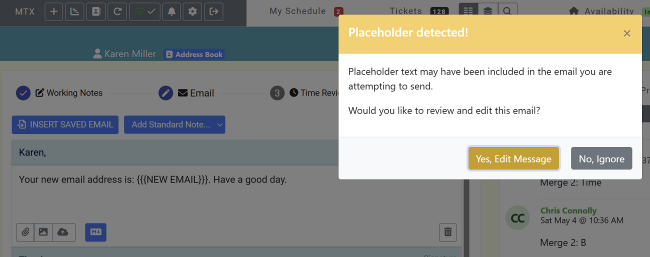
Placeholder and Warnings for Ticket Emails

When drafting an email, placeholders can be used for information that needs to be changed before sending the email. This is particularly useful for saved emails and email templates. Placeholders can be any text surrounded by {{{ and {{ "\}\}\}" }}. Ex: {{ "\{\{\{OWA URL\}\}\}" }}

Placeholder and Warnings for Ticket Emails

FeatureConnectActive

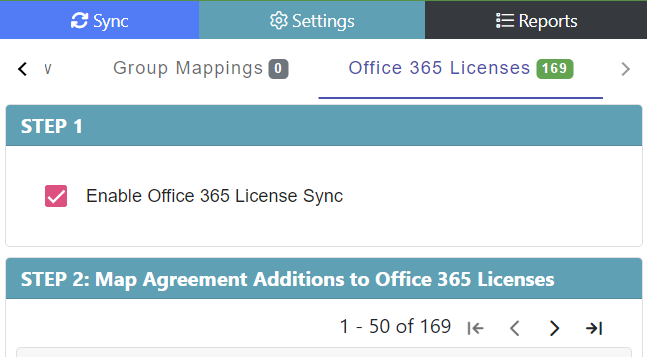
Pagination and Performance Updates for Many Agreement Mappings

For a company sync with over 50 agreement mappings, pagination will automatically be applied. In addition, interface performance updates were added to the agreement mappings page.

Pagination and Performance Updates for Many Agreement Mappings

FeatureConnectActive

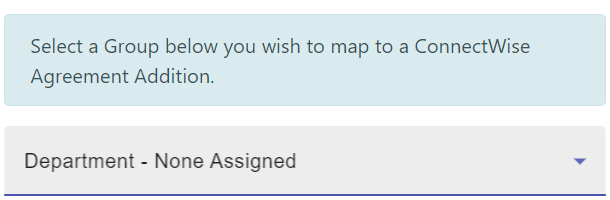
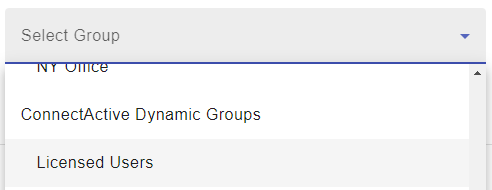
Department - None Assigned Dynamic Group

For companies filtering using ConnectActive's Dynamic Department Groups, a new "Department - None Assigned" was added. This group's membership will consist of users with no department field assigned.

Department - None Assigned Dynamic Group

FeatureMTX: Tickets

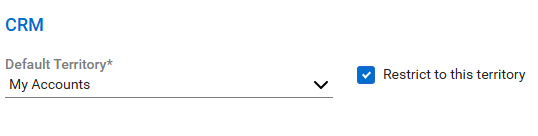
Restrict on Territory

MTX will now honor the "Restrict Territory" option for ConnectWise member accounts. This is particularly useful for Streamline member accounts.

Restrict on Territory

FeatureMTX: My Schedule

Auto-Unacknowledge Moved Schedules

When a user's schedule record is moved to a different day by another individual, MTX will automatically clear the schedule's acknowledged flag so there can be a record of if the scheduled user acknowledged the new scheduled date/time.

FeatureConnectActive

Unassigned Count for Filtered License Agreement Addition

Previously, when using a filtered merge operation against a M365 License Agreement Addition, you could not include unassigned license counts against the addition. This is no longer a restriction and you may now choose to include unassigned license counts against a filtered license agreement addition.

Unassigned Count for Filtered License Agreement Addition

FeatureMTX: Tickets

Markdown Syntax for Text Formatting

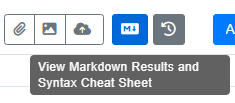
When entering Working Notes, an Email or Ticket Note, a Markdown button is now provided to both provide a preview of your text after formatting has been applied as well as the Markdown Syntax Cheat Sheet, shown below.

Markdown Syntax for Text Formatting

Markdown Syntax Cheat Sheet
ActionMarkdown SyntaxResult
Bold**bold text**bold text
Italic*italicized text*italicized text
Link[My Link Title](https://www.example.com)My Link Title
Image![Title](https://media.nilear.com/live/working.png)Title
Ordered List
1. First item
                2. Second item
              3. Third item
  1. First item
  2. Second item
  3. Third item
Do this
Don't do this
Try to put a blank line after your list
                      Hi!
                      1. First item
                      2. Second item
                      3. Third item
                      Thanks,
                      Your IT Team
                    Company, LLC
Without the blank link, your output might not be right
                      Hi!
                      1. First item
                      2. Second item
                      3. Third item
                    Thanks, Your IT Team Company, LLC
Unordered List
- First item
                - Second item
              - Third item
  • First item
  • Second item
  • Third item
Do this
Don't do this
Try to put a blank line after your list
                      Hi!
                       First item
                       Second item
                       Third item
                      Thanks,
                      Your IT Team
                    Company, LLC
Without the blank link, your output might not be right.
                      Hi!
                       First item
                       Second item
                       Third item
                    Thanks, Your IT Team Company, LLC
FeatureMTX: Tickets

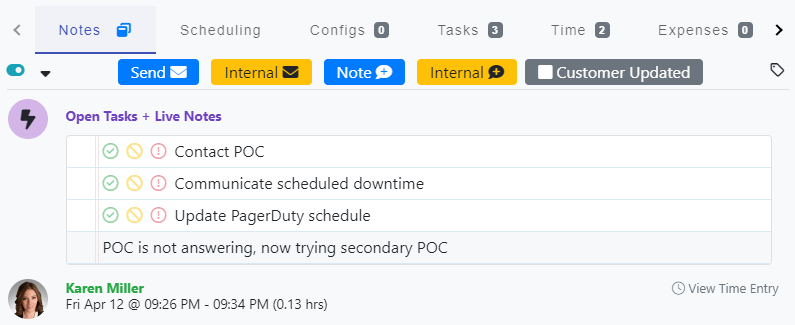
Live Notes and Open Tasks

When viewing a ticket, any live notes being entered during another's MTX "Work on Ticket" session and/or open tasks will now be included under the Notes tab.

Live Notes and Open Tasks

FeatureMTX: Tickets

View Inactive Contacts under Address Book

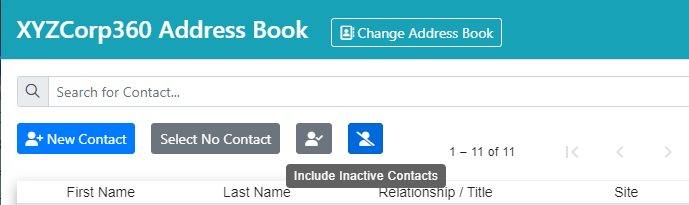
The Company Address Book now includes an "Include Inactive Contacts" button if you wish to view Inactive contacts as well.

View Inactive Contacts under Address Book

FeatureMTX: General

Notifications Overlay Setting

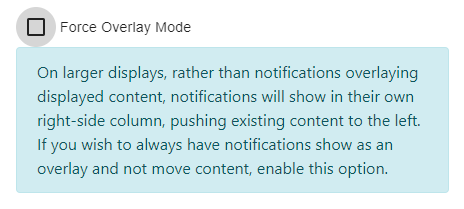
An additional option for notification display has been added to MTX Notification Settings.

Notifications Overlay Setting

FeatureConnectActive

Hold Addition Contact Drops until After Invoicing for in Arrears Billing

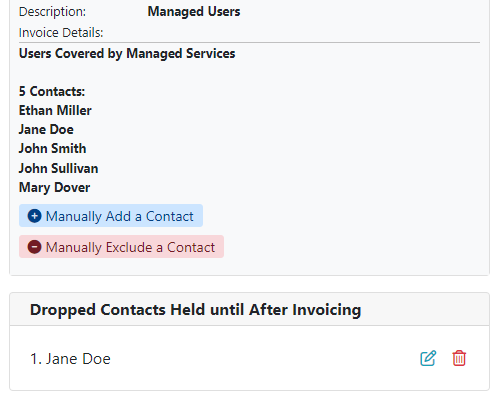
This setting is applicable for customers not using prorating, are billing in arrears and wish to control when deactivated users are removed from the addition. This setting can be enabled system-wide and also be controlled at the individual agreement addition mapping level. When enabled, ConnectActive will keep dropped contacts against the agreement addition until the addition is invoiced in ConnectWise. When disabled, ConnectActive will update the agreement addition to reflect the current active users for the addition.

Hold Addition Contact Drops until After Invoicing for in Arrears Billing

FeatureConnectActive

Dynamic Office Location Groups

ConnectActive now provides dynamic groups based on one's assigned Office field in M365, which can be mapped directly to an agreement addition, ConnectWise Site or merged with other groups as a filter.

Dynamic Office Location Groups

UpdateMTX: Tickets

Contact Status

When editing a contact in MTX, you can now update the contact's Active/Inactive status.

Contact Status

UpdateMTX: My Schedule

Dispatch Calendar View All Day Option

When using the Dispatch Calendar view, you now have the option to include or exclude All-day events.

Dispatch Calendar View All Day Option

UpdateMTX: Tickets

Updated changed to Modified

The "Updated" column has been replaced with "Modified". Modified differs from Updated in that Modified is only updated when the ticket's state/status changes or the content of the ticket changes. Other ticket property updates, such as changing the ticket's Source value, will not change the last Modified date.

FeatureMTX: Availability

Availability Board Active Roles

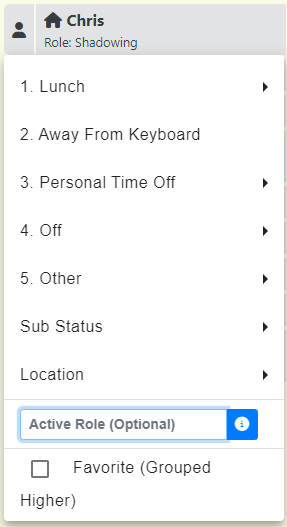
You can optionally assign one an active role for the day. This is most commonly used when assigned additional or different work for the day. You can also opt to use this field however you organization chooses.

Examples include "Shadowing" another tech, "Sales Calls", or taking over "Dispatcher" when the primary dispatcher is off.

Availability Board Active Roles

FeatureMTX: Availability

Availability Status Filtering

In addition to filtering the Availability Board by Team, you can now filter based on users' statuses, such as Lunch or In Progress.

Availability Status Filtering

FeatureMTX: Tickets

Reassign Owner Toolbar

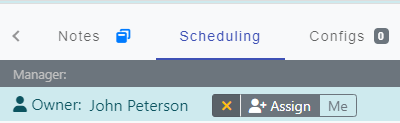
If an owner has already been assigned to a ticket, MTX will now display a Reassign Owner Toolbar, allowing you to quickly remove the owner of the ticket, select a new owner or to reassign yourself as the owner.

Reassign Owner Toolbar

FeatureMTX: General

International Date Formatting

MTX will now use the "DD/MM/YYYY" date format for international customers.

International Date Formatting

FeatureConnectActive

Licensed Users Dynamic Group

ConnectActive now provides an additional dynamic group, "Licenses Users", which can be mapped directly to an agreement addition or merged with other groups as a filter.

Licensed Users Dynamic Group

FeatureConnectActive

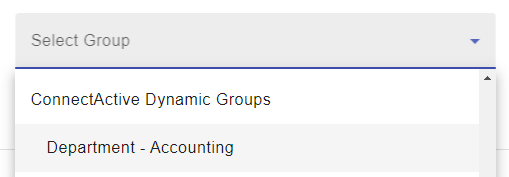
Dynamic Deparment Groups

ConnectActive now provides dynamic groups based on one's assigned department field, which can be mapped directly to an agreement addition or merged with other groups as a filter.

Dynamic Deparment Groups

UpdateMTX: Tickets

Bundle Ticket Button

Back by popular demand! The "Bundle Ticket" button has been returned to the ticket view.

Bundle Ticket Button

UpdateMTX: Tickets

Ticket Wrap-up Dispatch Option

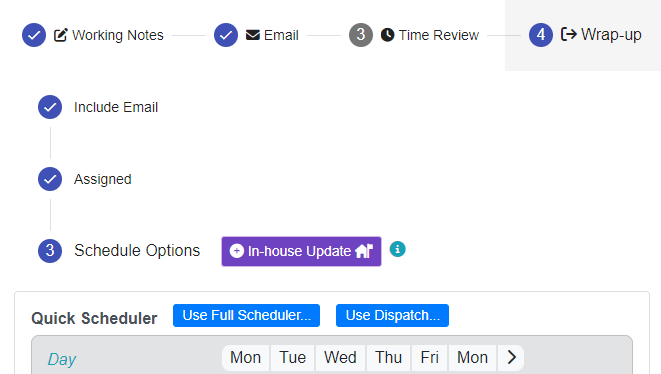
Under the Wrap-up Scheduling Options step, a "Use Dispatch" button is now provided if you wish to utilize the Dispatch feature over the Quick Scheduler during Wrap-up.

Ticket Wrap-up Dispatch Option

AnnouncementMTX: General

MTX 4.5.14: Ticket Interface Changes

The MTX 4.5.14 release contains interface changes for bundling tickets, converting tickets, ticket selection, and ticket filtering.

Bundle Tickets as an Action

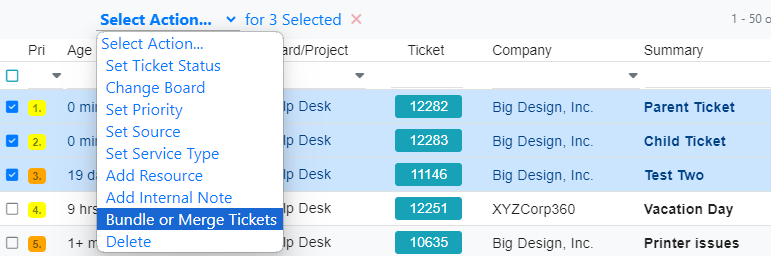
The "Bundle Tickets" button has been removed from the top of the ticket view and can now be performed as an action from either the main "Tickets" tab or a ticket's "Other Tickets" tab. Selecting a ticket will automatically display the "Select Action" drop-down.

MTX 4.5.14: Ticket Interface Changes

Updated Bundle Ticket Interface

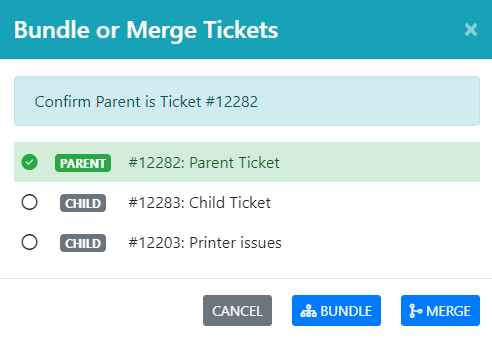
You can now select multiple tickets at once to bundle and the bundle interface has been updated to easily select the parent ticket for a multi-ticket bundle.

MTX 4.5.14: Ticket Interface Changes

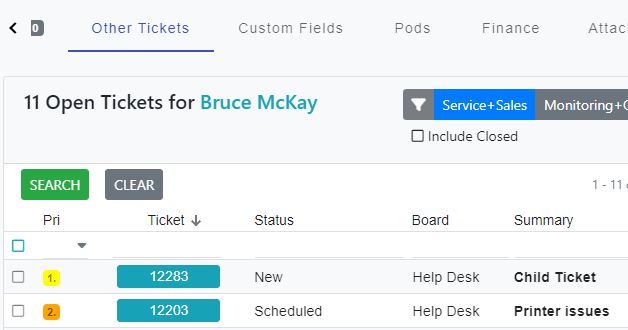
Other Tickets View

The "Other Tickets" view has been updated to include additional columns as well as filtering and sorting.

MTX 4.5.14: Ticket Interface Changes

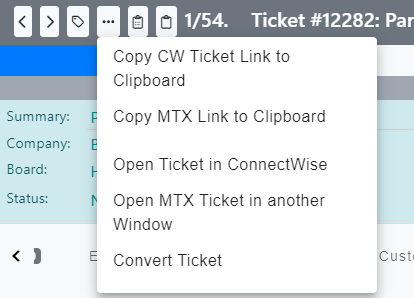
Convert Ticket Location

The "Convert Ticket" option has been moved to a ticket's options

drop-down.

MTX 4.5.14: Ticket Interface Changes

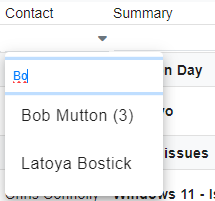
Autocomplete Filters

An Autocomplete input field is now provided when using a Column Filter containing drop-down options.

MTX 4.5.14: Ticket Interface Changes

FeatureMTX: General

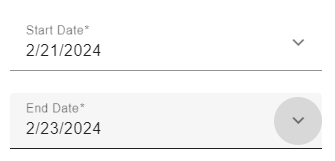
Spanning Schedules

MTX can now support spanning schedule records. You can also convert a schedule to a multi-day schedule by clicking on the new icon when viewing a schedule.

Spanning Schedules

Selectable End Date

Spanning Schedules

FeatureMTX: General

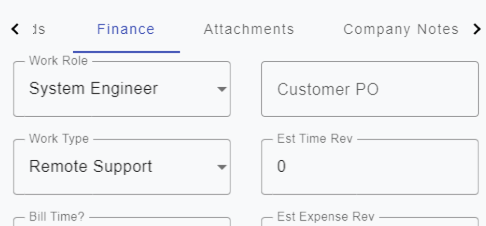
Finance Tab

The Finance tab has been added to the MTX ticket view. This tab is only be available for those whose security role includes Service Tickets - Finance rights in ConnectWise Manage.

Finance Tab

UpdateConnectActive

ConnectActive Sync Status Tabs

Companies configured for ConnectActive Sync will now be divided into four categories: Active, Failed, Not Syncing, and Deactivated.

ConnectActive Sync Status Tabs

UpdateMTX: My Schedule

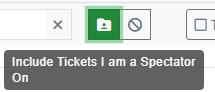
Spectator Filter

Previously, the Spectator button displayed Spectator schedules "only", excluding date/time schedule records from the view. The button has been updated to instead "include" Spectator records along with other date/time schedule records.

Spectator Filter

UpdateMTX: General

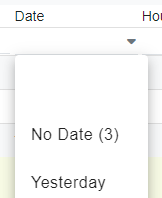
No Date Filter

The Date Filter has been updated to include a "No Date" option.

No Date Filter

FeatureMTX: Tickets

Keyboard Alt-Key Shortcuts

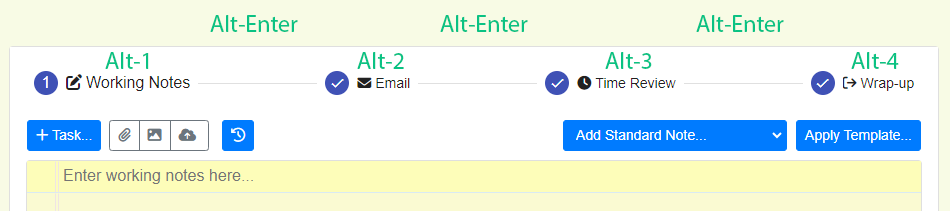
When working on a ticket, you can now move between your working tabs using the following Alt-key combinations.

Alt-Enter: Moves to the next tab

Alt-1: Moves to the Working Notes tab

Alt-2: Moves to the Email tab

Alt-3: Moves to the Time Review tab

Alt-4: Moves to the Wrap-up tab

Keyboard Alt-Key Shortcuts

AnnouncementMTX: Tickets

Enhanced Configuration Searching

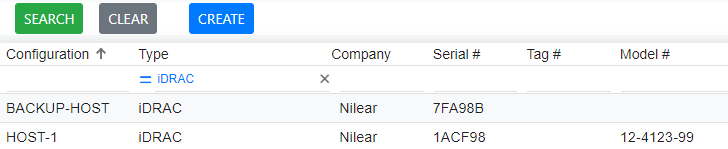
Configuration searching now includes 18 headers to search and sort on. The new search capability is also faster for companies with a high number of configurations.

Enhanced Configuration Searching

AnnouncementMTX: Tickets

MTX 4.5: Projects!

Our MTX 4.5 release is all about projects. This will be our first of many enhancements in MTX to better support projects, with future versions adding sorting, searching, project calendars, and additional project management functionality.

MTX 4.5: Projects!

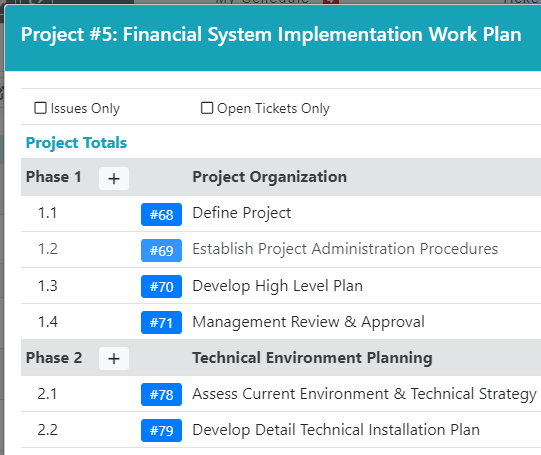
Project Work Plans

Project work plans are now available in MTX. The project work plan also includes the ability to create project tickets and issues as well as move to tickets within the work plan.

Ticket project names and phase descriptions are now clickable and link directly to their work plans.

MTX 4.5: Projects!

Create Project Tickets/Issues

You can now create new project tickets or issues from either MTX's "New Ticket" tab or directly from a project's work plan.

MTX 4.5: Projects!

Convert Service Tickets to Project Tickets/Issues

The Ticket Summary view's "Bundle Ticket" button has been updated to a "Bundle/Convert Ticket" button, allowing one to convert service tickets to project tickets or issues.

MTX 4.5: Projects!

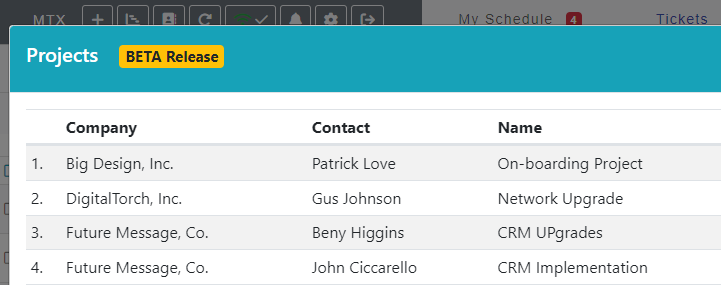
View Open Projects

You can now view a list of the open projects available from the MTX toolbar.

MTX 4.5: Projects!

AnnouncementConnectActive

Google Workspace Integration

ConnectActive can now sync against Google Workspace environments.

Google Workspace Integration

AnnouncementMTX: Tickets

One Working Ticket Method

Nilear recommends switching to the One Working Ticket Method (via the MTX icon) for new users, users who wish to improve their Score My Team Real-time Ticketing scores, and users who commonly use the "Keep Timer Running" option under the Classic Working Tickets method.

Users can only work on one ticket at a time, achieving true real-time ticketing. The user does not need to keep the ticket tab active as the timer is always running while the ticket is In Progress. If the user wishes to work on another ticket while currently In Progress with another ticket, MTX now provides three options. First, the user can wrap-up their current ticket before moving to their next ticket. Second, the user can PSR their existing ticket to work on the ticket again in the future. Third, the user can begin working on the new ticket and MTX will automatically place the ticket into Auto PSR. Once the user has completed work on the new ticket, the Auto PSR ticket will automatically be returned to In Progress and its timer resumed. Auto PSR tickets remain docked in MTX with an asterisk before *PSR.

Pros:

  • True real-time ticketing as one can only have one ticket In Progress at anytime
  • Clear reporting to others on which ticket you are actively working on
  • No longer required to keep a ticket tab active in order for the timer to be running
  • Can move instantly to another ticket without having to manually PSR an existing ticket
FeatureMTX: Tickets

Improved Pod Integration with SideKick, Traceless.io, Thread, etc

Pod Integration in MTX has been updated to include ConnectWise authentication in order to improve communication with third-party Pod (or Managed Hosted API) integrations. This will also include the addition of a "Nilear-Auth" tab to your ConnectWise PSA's Today screen.

Improved Pod Integration with SideKick, Traceless.io, Thread, etc