UpdateMTX: Tickets
Time Review Information
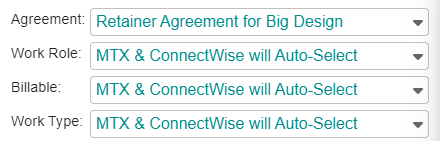
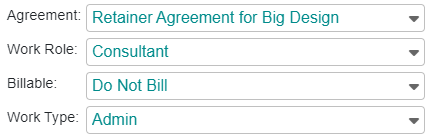
When viewing Time Review information for a "Working on Ticket", MTX will now show all values rather than "will Auto-Select".
PREVIOUSLY
UPDATED
76 changes, newest first.
When viewing Time Review information for a "Working on Ticket", MTX will now show all values rather than "will Auto-Select".
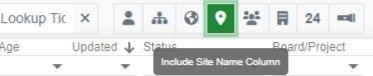
You can now include the tickets' Site as a column on your ticket listing view.
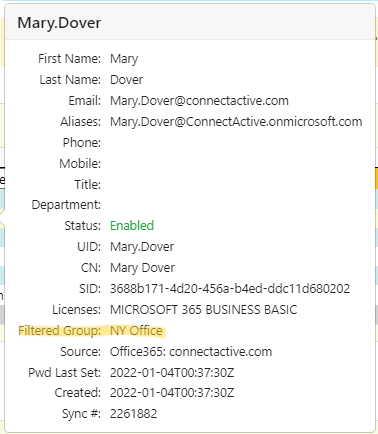
When applying one or more groups to filter contacts, ConnectActive will now display which of the filtered groups the Office 365 user was found to be a member of.
Released several bug fixes for ConnectActive.
Released several bug fixes for MTX.
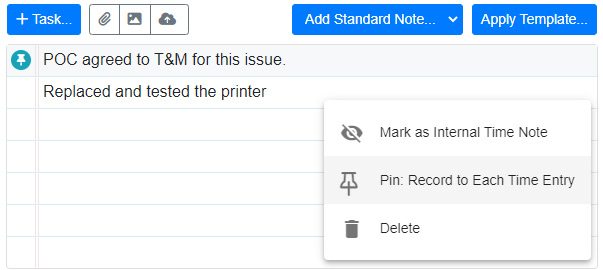
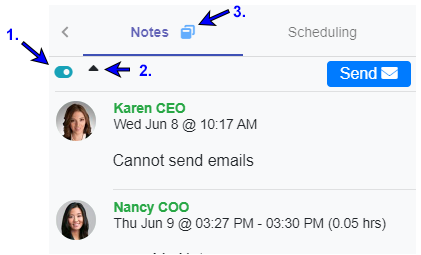
You can pin a note when working on a ticket to be included in all time entries created again the ticket.
This can be useful for when you want certain information to be presented with each of the ticket's time entries during invoicing.
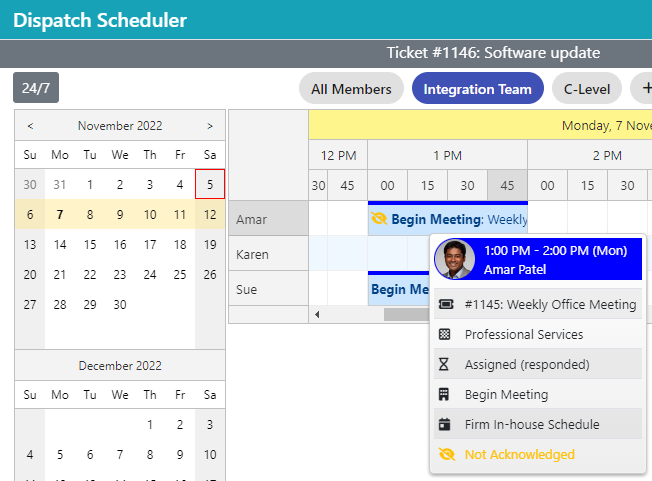
MTX now provides a Dispatch Scheduler for when you wish to assign work but need to determine who is available.
ConnectActive will now include the monthly changes encountered against an Agreement Addition, including prorated Agreement Additions.
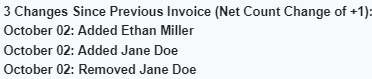
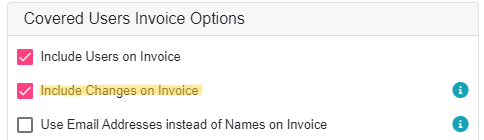
You can control whether to include changes under the invoice description under the Agreement Addition's settings.
You can now elect not to update an Agreement Addition count when performing a sync. This is useful for those Agreement Additions you want only to update the list of users included against the Agreement Addition but leave the count as is so it can be updated manually or by another system.
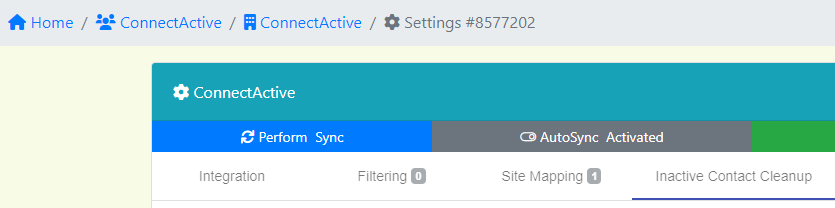
"Inactive Contact Cleanup" provides a review and automated process of merging data of inactive duplicate contacts with their active contact and removing inactive contacts that were never used (no service tickets, configurations, etc.).
You can find this new feature under the client company's Settings page.
You can now access an MTX Ticket directly using the URL https://mtx.link/[ticket#].
Replace "[ticket#]" with any ticket # in your ConnectWise instance.
Nilear Live will now use the MTX Link for its View Ticket links.
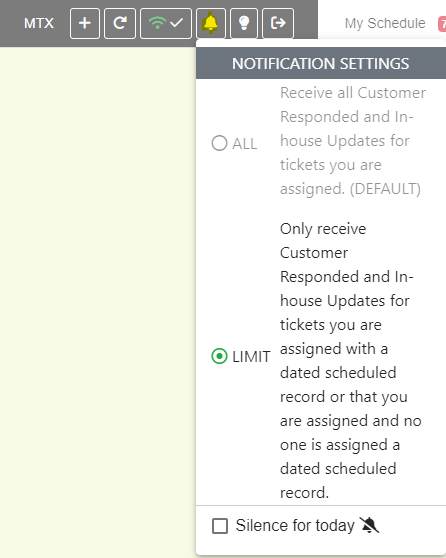
You can now opt to silence the MTX Notifications for the day.
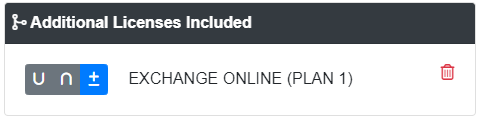
When merging one or more groups to map against a single Agreement Addition, you can now select the merge method of Union, Intersection or Difference.
Union
Intersection
Difference
ConnectActive can now process prorating for invoices created at the end of the billed month (in arrears) or were generated past their expected generation date.
Previously, ConnectActive prorating would only handle changes for billed-ahead invoices, such as billing customers at the start of the month for the upcoming month (similar to Microsoft 365 billing).
You can now drag-and-drop a file or image to the upload toolbar.
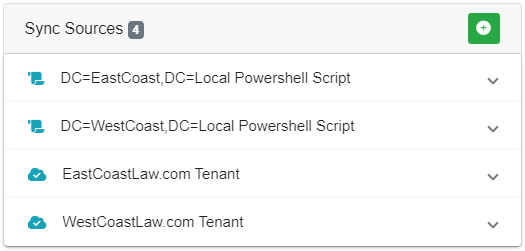
ConnectActive can now sync multiple AD and/or Office 365 tenants to a single ConnectWise Company. This is helpful for companies that through mergers and acquisitions now have multiple infrastructures.
Below is an example law firm with two separate infrastructures for both their AD and Office 365 environments which will sync to a single ConnectWise Company.
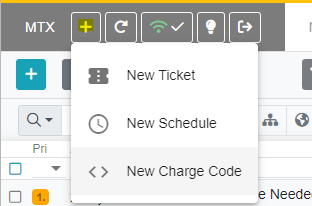
You can now generate Charge Code Time Entries using MTX.
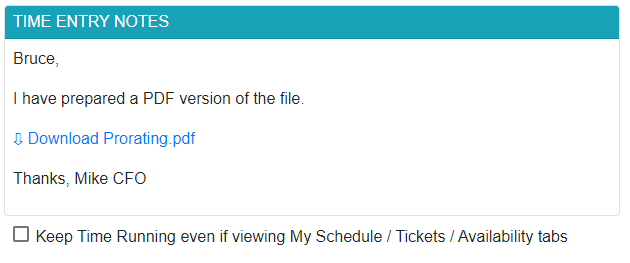
The use of attachment links in emails have been updated to appear more natural.
The Assigned column has been updated from displaying the Username to the user's unique First or Last name. The example below shows how "Admin3" (actual username) will now show as "Nancy" (Unique First Name) in the Assigned column.

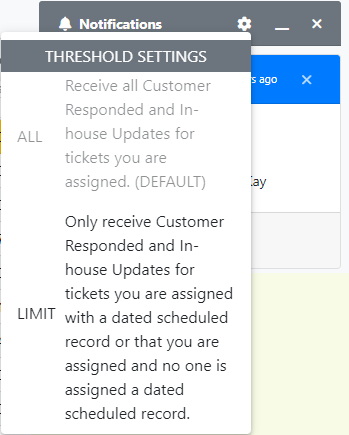
You can now individually control the threshold for firing Customer Responded and In-house Update notifications.
The new "Limit" option will restrict notifications to only tickets you are assigned a schedule record with a set date or when you have a spectator record and no one has a set date against the ticket and either you or no one is assigned as owner of the ticket.
When working on a ticket in MTX, the Email tab will now also provide an option to apply an In-house Update.

An MTX working ticket tab now includes a drop-down menu to toggle between timer options.
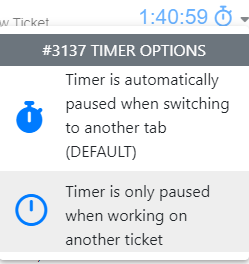
The "Timer is only paused when working on another ticket" can be useful for catch-all administrative tickets, such as "Manage Helpdesk".
When viewing a schedule record, MTX will now show the icons and to indicate if a schedule record has not been seen or seen, respectively.
The My Schedule tab will only show the icon if the schedule record has been not acknowledged. No icon will be shown if the schedule record has already been acknowledged.
MTX will also automatically update the acknowledged status for schedule records when opened in MTX.
If you have configured your Priorities in ConnectWise Manage to use custom images, MTX will now include those images within its various ticket views.
Once marked as "In-house Update"
When/Where in MTX can an Internal Note be marked as an "In-house Update"
You can now click on any image within a ticket and a fullscreen image viewer pop-up will show an actual-sized view of the image.
Notification alerts will now be placed in a dedicated column if the window width is 1400 pixels or higher. On smaller resolutions, the notifications will continue to be displayed as an overlay.
Notifications for Customer Responded will now continue to appear as an alert until the Customer Updated flag is cleared out in MTX or ConnectWise.
You can now configure the default access for the different Nilear Modules for new members.
MTX's My Schedule tab now provides Month, Next 7-Day, Week, and Day calendar view options.
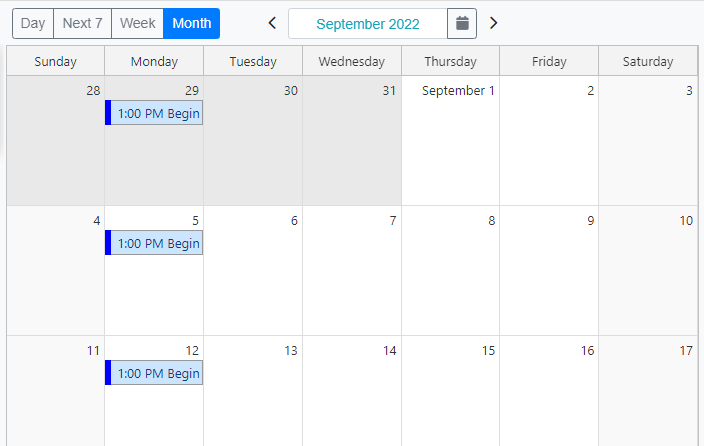
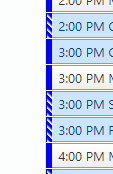
Schedules that are tentative/floating/shiftable will now have their color bar striped.
MTX's My Schedule tab now includes two buttons to mass update past due schedules.


You can now right-click on a schedule in the "My Schedule" tab in MTX in either the table or calendar view to present quick re-scheduling options.
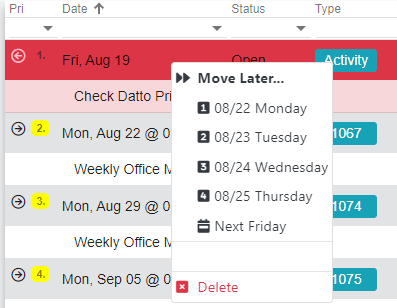
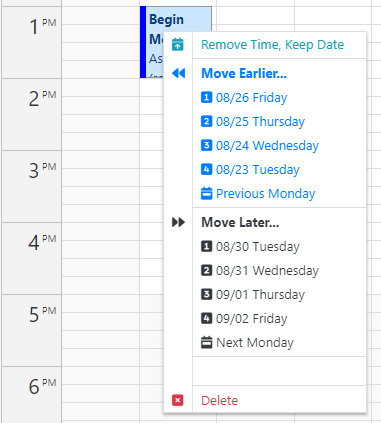
The My Schedule interface has been updated to handle more drag-and-drop functions. For example, you can now drag a schedule from the schedule table right onto the calendar. You can also drag a date only schedule at the top of the calendar directly down to a specific time of day.
Any other quick drag-and-drop feature not available, such as moving date only/no time schedules records between days, can be accomplished instead by right-clicking on the schedule for its context menu.
The ConnectActive Matching page's AD User column with now include First Name and Last Name along with UserID.
An option to list names as Last Name, First Name has also been added.
In ConnectWise Manage, you can define if a Ticket Status and its tickets will be displayed on a Service Board.
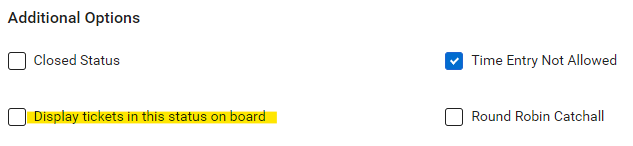
MTX will now hide tickets with hidden Ticket Statuses as well. You can override this option and view all tickets regardless of status by toggling the Flashlight icon.
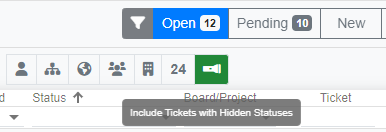
Use Case
The "Process Still Running" Ticket Status indicates the ticket is not currently In Progress but the tech will be returning to the ticket to complete more work. To avoid others seeing the ticket in their board queue, the "Process Still Running" Ticket Status will have its "Display Status" checkbox unchecked in CWM.
A Service Manager may wish to enable the "Show Hidden Statuses" and see all "Process Still Running" tickets in their view to keep track of unfinished work for their team.
MTX's "Work on Ticket" option can now stop, pause, and reset the member's Ticket Stopwatch in ConnectWise Manage.
This option can be enabled under Settings -> My Tickets -> Update CWM StopWatch.
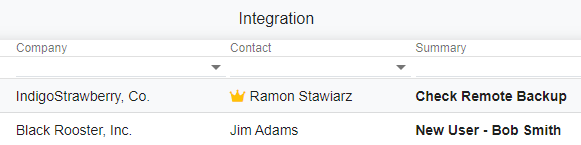
MTX has been updated to show VIP Contacts in the Tickets and Schedule Listing using a crown icon .
To mark a contact as a VIP, the contact must be assigned a Contact Type containing "VIP" in the description.
When this option is enabled, ConnectActive will attempt to drop any additional AD Accounts that are repeated. For example, if a single employee is created two separate mailbox accounts.

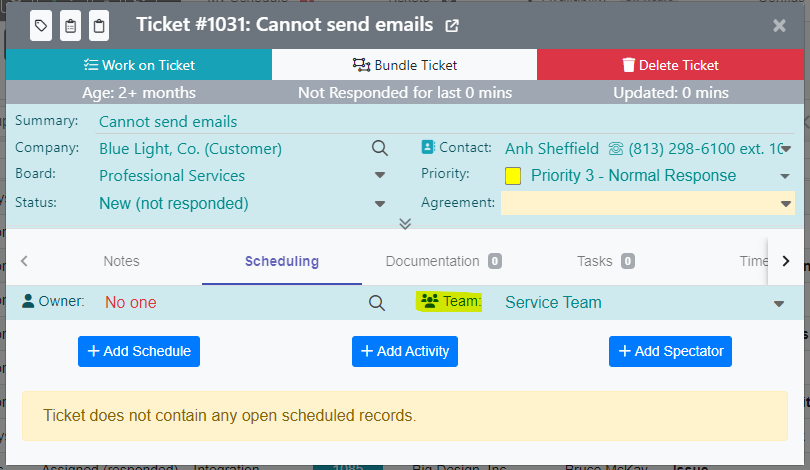
You can now change the assigned Service Team for a ticket under the Ticket Summary View's Scheduling tab.
ConnectActive now provides Company-wide, Agreement Addition, and Office 365 License Reports. These reports are also exportable to Excel.
An "Export All Reports" option is also available to export all company Excel files to a single Zip file.
A new website status.nilear.com has been launched to provide feedback in the event Nilear services are degraded, under maintenance or off-line.
The Nilear tools have also been updated to be status aware and can provide improved notification in the event of a status change.
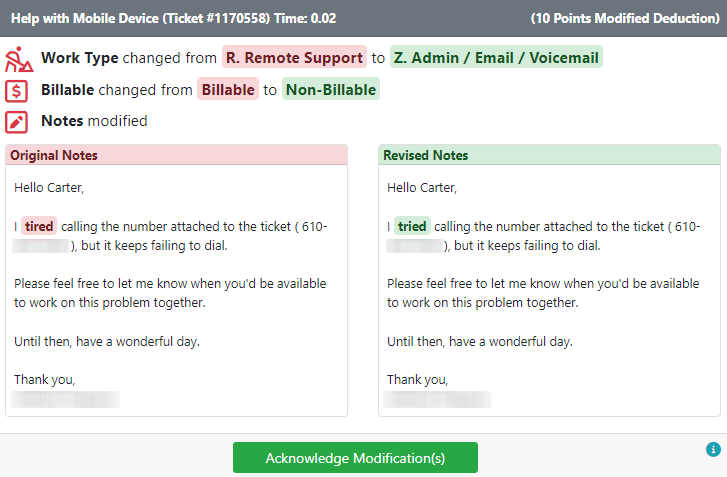
Under the Timesheets Scoring Modules, Score My Team will deduct points for modifications made to a time entry. You can now remove these deductions by clicking on the "Acknowledge Modification(s)" button. Only the owner of the time entry can acknowledge a modification.
Please note that the points deducted for Past Due time entries submitted for approval after their due date will not be dropped; just the points deducted for modifications.
The drill-down reports for the Configuration and Timesheet Scoring Modules have been updated to the new UI.
An additional option for ConnectActive Office 365 sync was added to specify how to handle disabled users with assigned licenses.
When this option is enabled, ConnectActive will sync disabled users with active Office 365 licenses as active. Meaning, their ConnectWise contact will remain active in ConnectWise.
When this option is disabled, ConnectActive will ignore disabled users regardless of any assigned active licenses. Meaning, their ConnectWise contact will be inactivated. Office 365 License Agreement Addition mappings will still include an assigned user, regardless of the enable/disabled status of their account.
An "Age" column has been added to Schedules Table view. If the schedule is for a ticket, Age is calculated based on the ticket age. All ages for schedules are based on a 24-hour clock rather than on business hours.
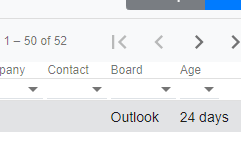
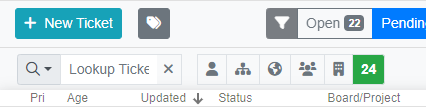
By default, MTX calculates Ticket Age and Updated Age based on office hours. The new "24" button allows you to toggle these calculations to use a 24-hour clock instead.
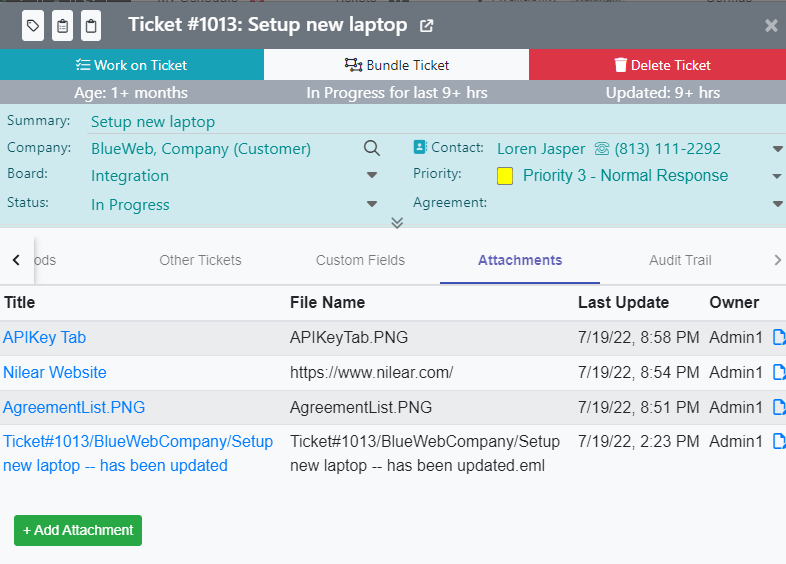
Attachments have typically been listed inline under the Notes section of the Ticket Summary view. The view now includes a dedicated Attachments tab, similar to ConnectWise Manage.
When creating New Tickets, you can now lookup a contact by email address.

The Ticket Summary View will now show (in business hours) the age of the ticket, how long the ticket has been in its current SLA state, and how long since the last ticket update.

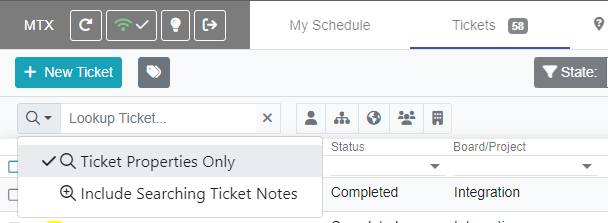
The "Lookup Ticket..." field has been updated to allow the search to be expanded to search ticket notes as well as ticket properties.
For MSPs that have enabled In/Out Board integration with Nilear, AFK does not propagate to the ConnectWise Manage In/Out Board by default. If an MSP wishes to have AFK propgated, the MSP can add "AFK" to ConnectWise Manage under the Manage Client -> System -> Setup Tables -> In/Out Types and Nilear will then sync AFK updates to the In/Out Board.
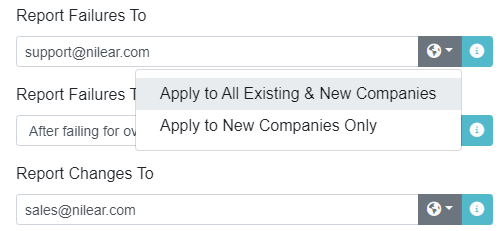
When setting the "Report Failures To" and "Report Changes To" email addresses, you can now use the new drop-down option to set the value globally and/or set the value as the default for newly created syncs.
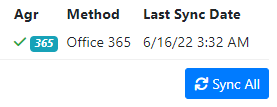
If you have made changes to your ConnectWise Manage products/agreements and need to force a sync of all your companies, a "Sync All" option is now available on the main ConnectActive landing page.
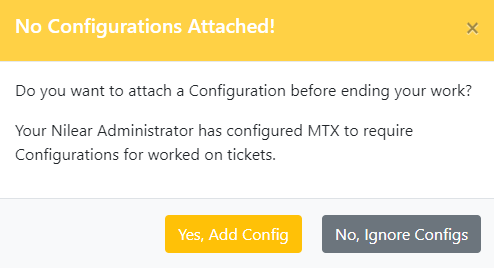
When this option is enabled and someone is working on a ticket in MTX which does not have a configuration attached, MTX will ask if a configuration should be attached before exiting the ticket.
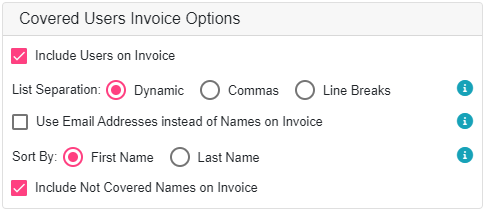
List Separation and Sort By options have been added to the user list invoice options.
The Availability Board will now include your ConnectWise Manage In/Out Types, such as Sick and Vacation.
You can edit/add to your list of unavailable statuses under ConnectWise Manage System Setup Tables In/Out Types.
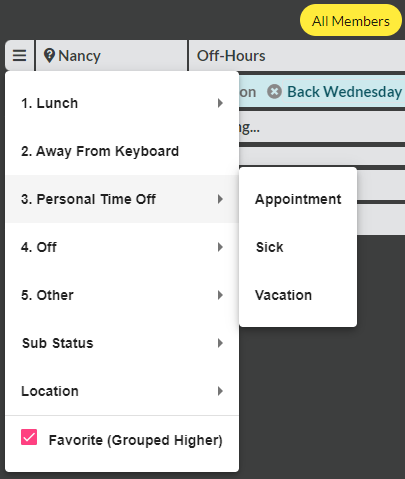
If you actively use the In/Out Board in ConnectWise Manage, you can now enable a 2-way sync with the Time Machine and MTX's Availability Board. View Settings.
If you do not currently use the ConnectWise Manage In/Out Board, it is not recommend you enable this feature unless you understand how the In/Out Board affects email communications.
You can now pin selected Custom Fields to display in all ticket views. To pin a Custom Field, open a ticket in MTX, select the Custom Fields tab, and click on the Custom Field's pin icon.

You can now filter the Ticket listing by the Service Team assigned to the ticket.

You can now filter the Ticket listing by a Company Group. Create your own Company Groups and populate them with companies of your choosing.

When the Project Board Type is selected, MTX will now include a Project Phase column for the ticket listing.

Corrected an issue where copy-and-pasting images in Working Notes or while drafting an Email would cause the images to be inserted out of their expected order.
MTX will now display third-party Pods that have been enabled for your ConnectWise Manage instance. The pods will be displayed under the Pods tab of the Ticket View and under the Ticket Properties of the Working Ticket View.
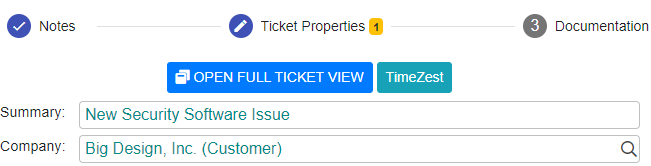
MTX's Wrap-up workflow now includes a button to move a ticket to a different board after wrap-up.
This help those MSPs that expect their technicians to move their worked on tickets to other boards for escalation, triage or review.
When selecting tickets in MTX, you can now add an Internal Note to 2 or more selected tickets at once.
MTX's workflow now includes an option of simply sending the Working Notes as an Email rather than drafting an email to the customer.
You will automatically be presented the "Send Notes as Email" option if you have provided notes that have not been flagged as Internal Time Note or Internal Discussion Only and no email has been drafted.
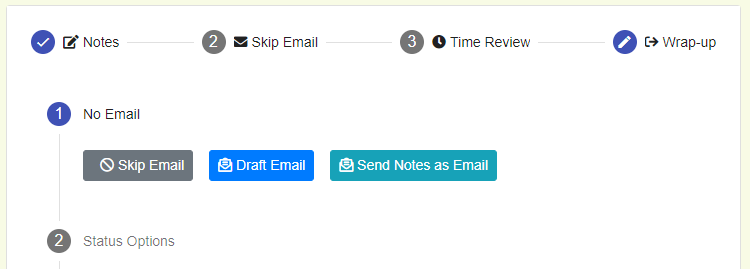
The ConnectActive interface has been upgraded. The original "Edit" option has now been split into two options: "Settings" and "Agreements"
You can now add ConnectWise Manage Standard Notes when entering Notes or composing an Email.
Standard Notes are defined under ConnectWise Manage -> System -> Setup Tables -> Standard Notes.
Some MSPs have a client they only provide the resell of Office 365 Licenses and do not wish to import the client's users into ConnnectWise Manage as Contacts.
Enabling the "Do Not Sync Contacts, Just Update License Agreements" checkbox under Offer 365 Options will prevent ConnectActive from updating Contacts in ConnectWise Manage and will only update Agreement Additions that have been mapped to Office 365 Licenses.
MTX will now display Reminder notifications based on a schedule's Reminder settings. In addition, any firm ticket schedule without a Reminder setting will still fire a notification at its scheduled start time.
Office 365 / Azure AD
Powershell Script for Active Directory
ConnectActive can now perform prorating on ConnectWise Manage Agreement Additions based on user-based count changes, such as changes with the number of Microsoft License subscriptions. For more information, click HERE.
| Please ensure you use our new IP range for any firewall rules restricting access to LDAPS (ConnectActive) or your ConnectWise Manage instance (On-premise). |
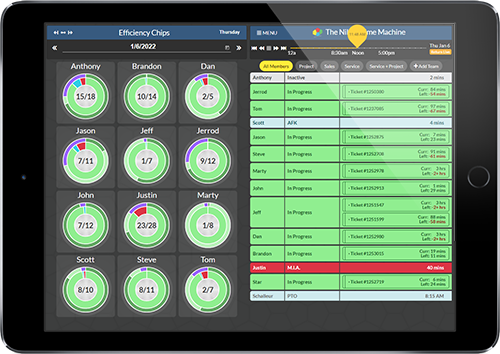
The new Time Machine provides many new enhancements