UpdateMTX: Tickets
Choose Your Ticket View from One Place
The top of the Tickets tab has been reorganised so every way of looking at your tickets starts from one place.
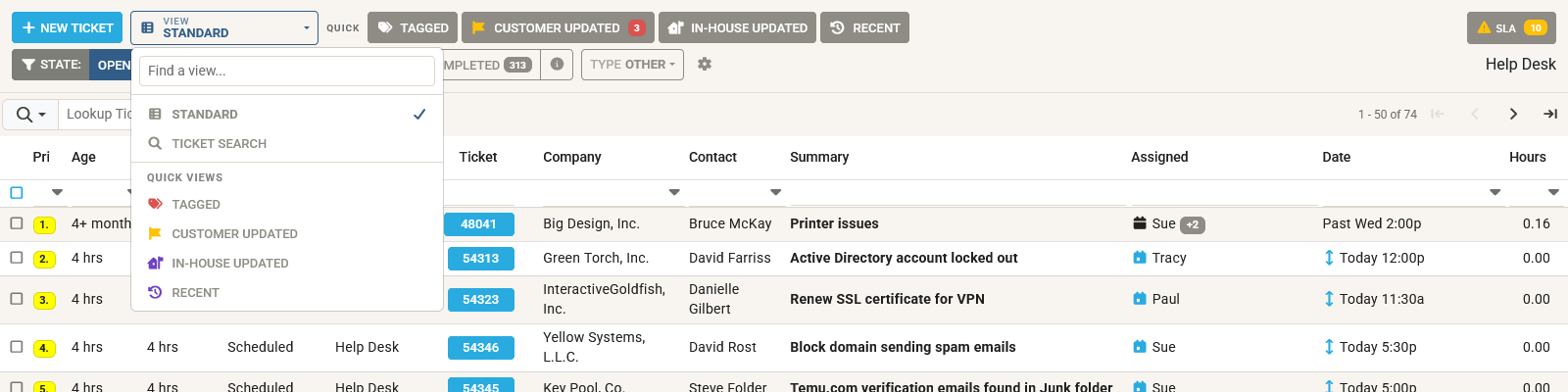
- View. The new View control after New Ticket names the view you are in and lists them all: Standard, Ticket Search, and the Quick views Tagged, Customer Updated, In-house Updated and Recent. Type in its box to find a view by name.
- Ticket Search has moved. The magnifier beside the Tickets tab name is gone: choose View → Ticket Search instead, and choose Standard or a Quick view to leave it. MTX still opens on Ticket Search next time if that is where you left it.
- My Queue from the same list. If you use the queue, My Queue is listed below Ticket Search. Choosing it takes you to the Queue tab, and the Tickets tab stays as you left it. When the Queue tab is showing a teammate's or the System queue, the entry takes that name instead.
- Quick views are labelled. The Tagged, Customer Updated, In-house Updated and Recent buttons now carry their names, and Customer Updated shows how many tickets it holds. Press an active one again to return to Standard.
- Type is a dropdown. Service, Monitoring, Project, Sales, Other and Custom are chosen from one Type list beside the state buttons.
- Filters in one place. My tickets, child tickets, service team, company group, 24-hour age, hidden statuses, last viewed and not queued now live under the Filters button, which shows how many are on. Each one that is on also appears as a chip you can remove with one click.
- SLA count. The SLA button shows how many tickets need attention for their SLA.