FeatureMTX: Tickets
Describe Your Own Ticket Views
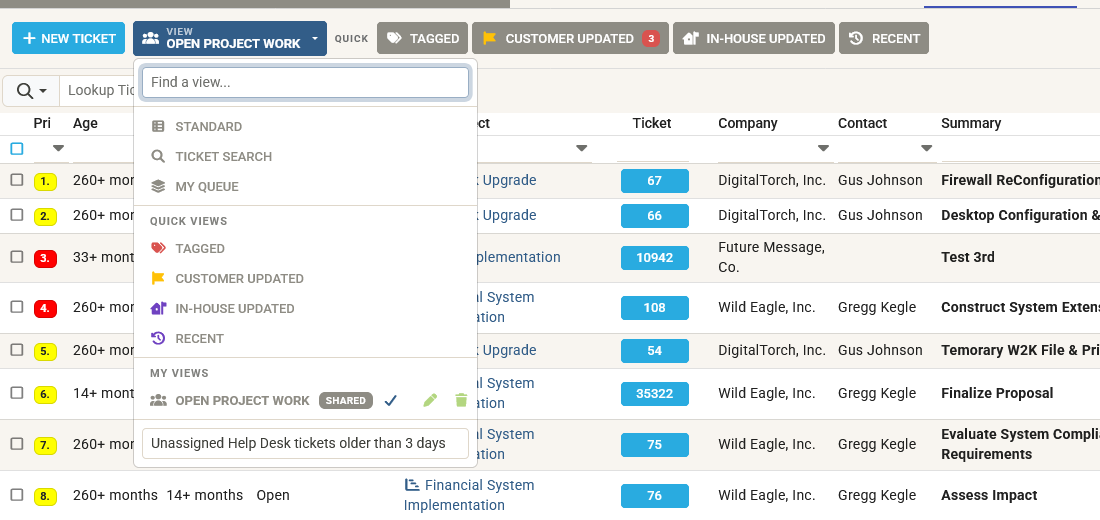
The View control on the Tickets tab can now hold views you describe yourself.
- Describe a view. Open View, choose Create Custom View… and type what you want, for example "tickets pending, or waiting but past due". MTX shows the conditions it understood, in words, and how many of your tickets match. Refine it with another sentence, or remove a condition you don't want.
- Bring a view over from ConnectWise. Take a screenshot of ConnectWise's Define a View dialog with its filters showing, and paste it into the builder, drop it there, or choose it with Use a ConnectWise screenshot…. MTX turns its filters into conditions and asks about any it could not read. Add a sentence with it to change it, for example "but only unassigned ones". The screenshot is not kept.
- What a view can use. Status, state, board, priority, type, team, members, dates and flags, as well as agreement name, territory, company ID, hours used, budget hours and ConnectWise's SLA status.
- Lock a view. Choose Lock View to keep its conditions as they are, even when you edit it later. Choose Unlock View to refine it again.
- Every board you can see. A view lists matching tickets from all the boards you have access to, whatever board type or boards you have selected.
- Private or shared. A new view is private. Turn on Shared to list it for everyone in your company under Shared in your MSP. Only you can change, share or delete the views you made.
- Your filters still apply. In a view, the State buttons and Type step aside, while Filters, the lookup box and column filters work as usual.
- Remembered. MTX opens on the view you were using last time.