Filter the Availability Board by Status, and Find a Member
A row of status chips now sits above the Availability Board. Each chip shows how many members are in that status: Working, Waiting, Inactive, Missing, On-site / Travel, Away, Off and Other. Hover over a chip to see what its colour means.
Click a chip to show only the members in that status. Click more chips to add their statuses, click a selected chip again to remove it, or press Show all to see everyone again. Selecting chips doesn't change the counts, so you can still see how many members are in each status.
A status nobody is in is left out of the row. To filter by it anyway, for example to watch who goes Off, press ⋯ after the chips to show every status, then click the one you want. Members appear as soon as they reach that status.
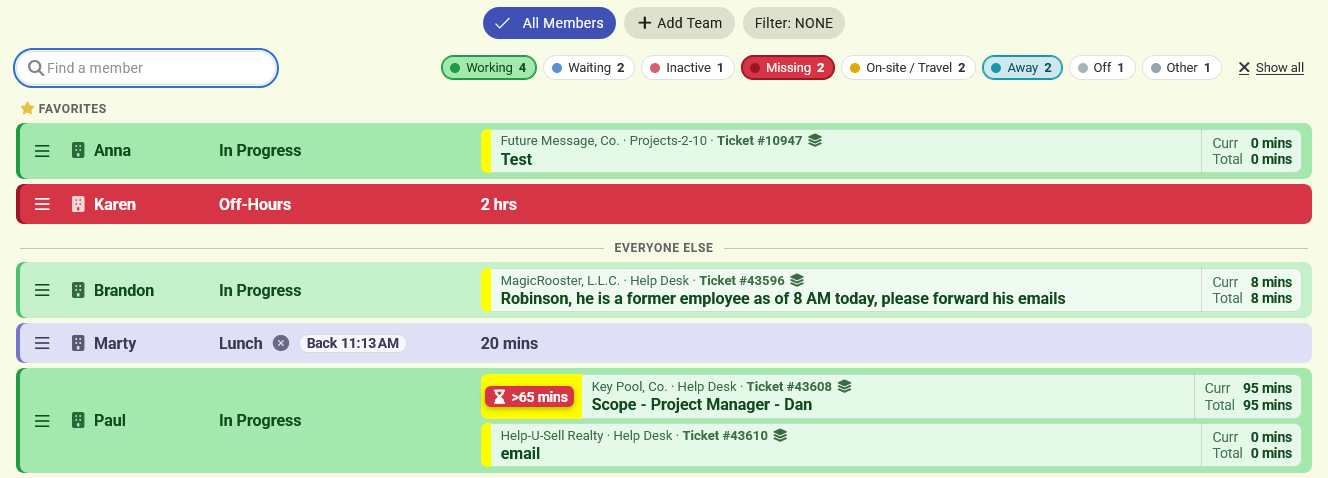
To find someone quickly, type part of their name in Find a member. Press Esc or the × to clear the search.