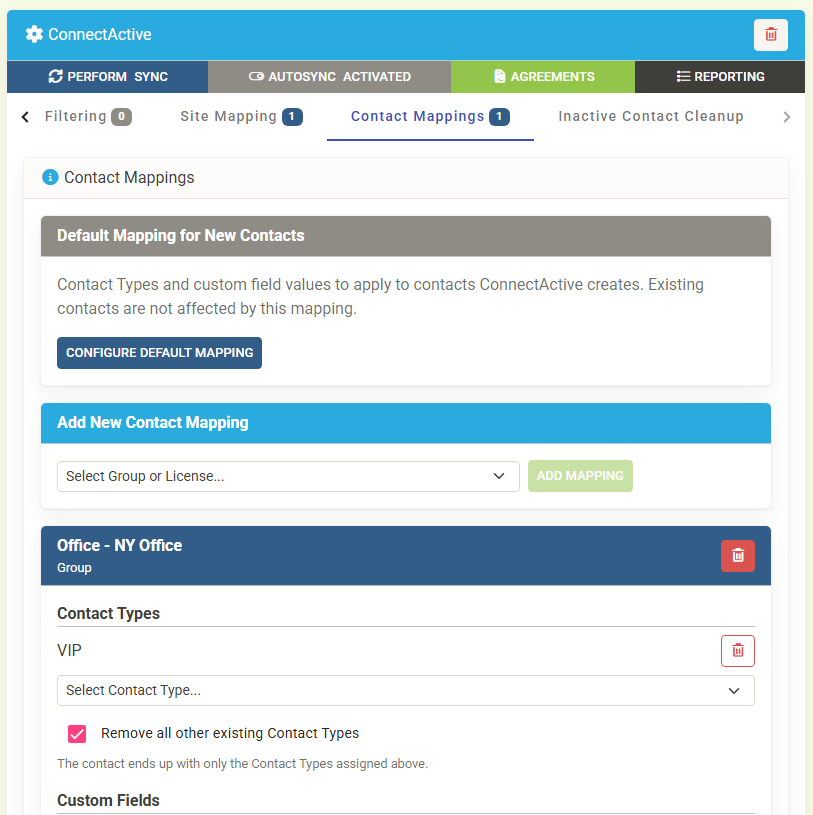
Contact Mappings
Introducing Contact Mappings – keep ConnectWise Contact Types and Contact Custom Fields in step with your directory automatically, instead of setting them by hand and watching them drift.
A new Contact Mappings tab has been added under ConnectActive -> Companies -> select a company. Map any Group, Microsoft 365 License or OU – the same list Site Mapping offers – and ConnectActive brings every contact in it into line on each sync:
- Assign Contact Types: everyone in the group is given the Contact Types you pick
- Remove Contact Types: or take a Contact Type away from everyone in the group
- Remove all other existing Contact Types: on by default, so a contact ends up with exactly the Contact Types the mapping assigns and nothing else
- Custom Fields: set a Contact Custom Field for the whole group – drop-down fields offer their ConnectWise values – or clear whatever value is already there
For example, everyone in Microsoft 365 E3 can be assigned Managed User, removed from Unmanaged User, and have their Level custom field set to Gold.
Default Mapping for New Contacts. Set the Contact Types and Custom Field values every contact ConnectActive creates should start with. When it assigns Contact Types they take the place of the ones ConnectWise flags as default, so new contacts arrive classified the way you want them rather than needing to be corrected afterwards.
Where mappings overlap, a group mapping wins over the Default Mapping – so a Default Mapping that assigns Unmanaged User together with a group that removes it leaves the contact without it. If two group mappings disagree, the one added most recently wins.
The Review page badges every Contact Type and Custom Field it intends to change before anything is written to ConnectWise. Hover a badge and it tells you what caused it – for example "Setting custom field Level to Gold as the user is a member of group 'Microsoft 365 E3'". Contacts flagged Not Sync are left alone.