Let a Client Approve ConnectActive in Microsoft 365
Microsoft lets only a Global Administrator or a Privileged Role Administrator approve the Microsoft Graph permissions ConnectActive needs. Other admin roles, such as Cloud Application Administrator, are refused. When nobody on your team has one of those roles in the client's tenant, the client can now approve ConnectActive themselves.
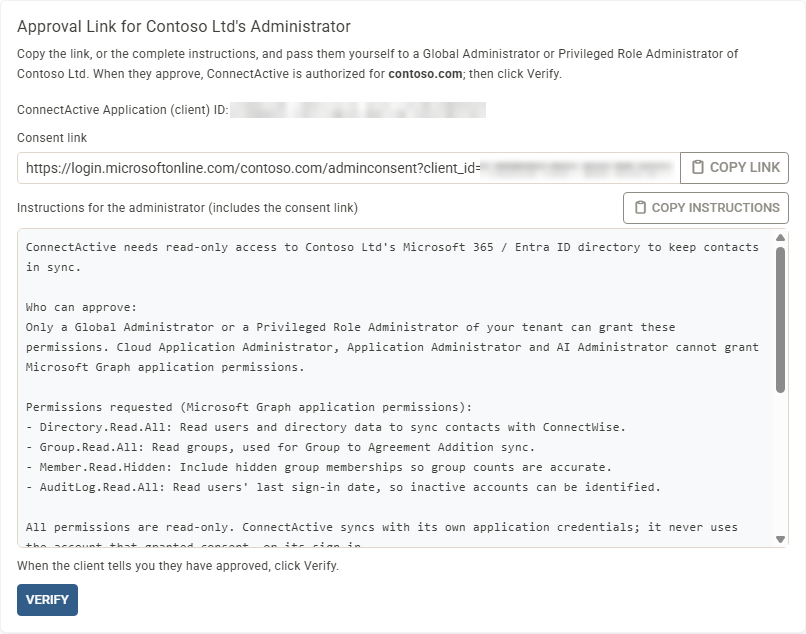
- Get Client Approval Link. In a company's Microsoft 365 / Entra ID source, enter the client's domain and choose Get Client Approval Link. ConnectActive shows the ConnectActive Application (client) ID, a consent link for that tenant, and instructions that include the link, ready to paste into your own email or ticket. Copy the link on its own or the whole instructions. Nothing is sent from Nilear.
- The client approves. Their Global Administrator or Privileged Role Administrator opens the link, reviews the permissions and accepts. A Nilear page confirms the result; they do not need a Nilear sign-in.
- You finish. When the client tells you they have approved, choose Verify, then sync as usual.
The Grant Authorization step now names the roles that can approve and lists the permissions requested: Directory.Read.All, Group.Read.All, Member.Read.Hidden and AuditLog.Read.All, all read-only. ConnectActive syncs with its own application credentials and never uses the account that approved. A declined or failed approval now shows Microsoft's reason instead of an error page.
The option can be found under ConnectActive -> Companies -> select a company -> the Microsoft 365 / Entra ID source.